
Table Of Contents
- What Is Screen Casting?
- How to Cast from an Android Phone
- How to Cast from an iPhone or iPad
- How to Cast from a Windows Laptop
- How to Cast from a Mac
- How to Cast a Chrome Browser Tab
- Casting vs Digital Signage: When Casting Is Not Enough
- Troubleshooting Common Casting Problems
- Casting Technologies Compared
- Casting for Business: Presentations, Menus and Meetings
- Setting Up a Permanent Screen Instead
- Frequently Asked Questions
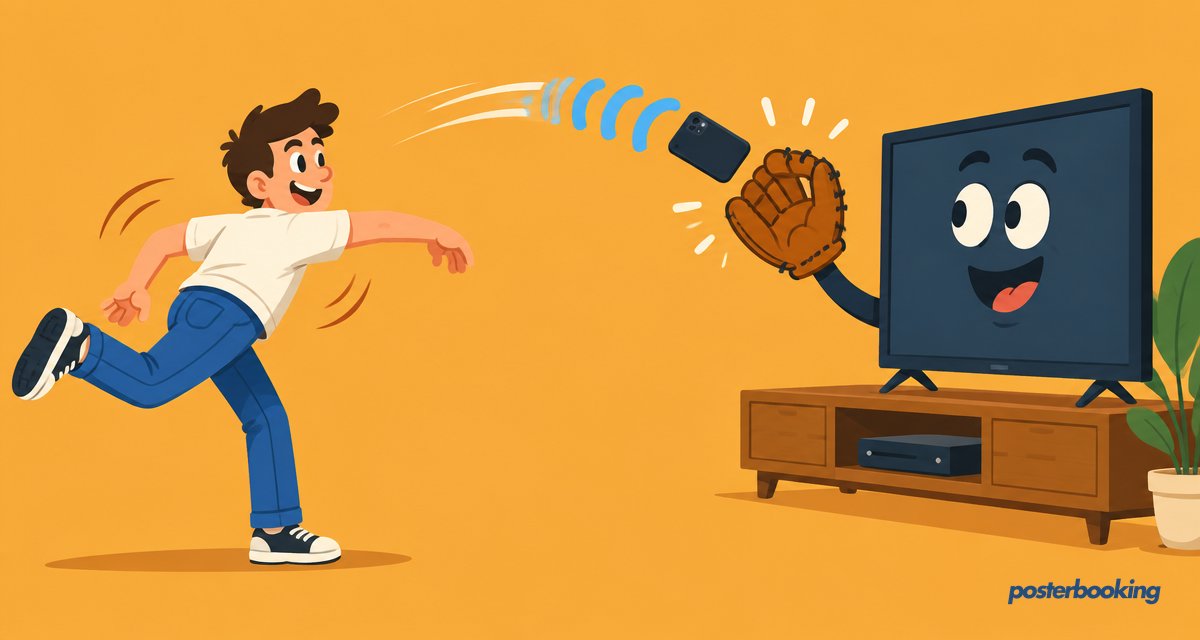
Casting to a TV in 2026 is simple: Android phones use Google Cast or Smart View, iPhones and Macs use AirPlay, Windows laptops use Miracast or the Cast feature in Chrome, and almost any smart TV, Chromecast, Fire TV Stick or Apple TV can receive the stream. Most casts take under two minutes to set up and need nothing more than both devices on the same Wi-Fi network.
This guide walks through every major device combination step by step, then explains when casting falls short for business screens and what to use instead.
What Is Screen Casting?
Screen casting (also called screen mirroring) sends whatever is on your phone, tablet or laptop to a TV over Wi-Fi. There are two types:
- Mirroring duplicates your whole screen, including notifications.
- Casting sends just one video, app or browser tab, so you can keep using your device.
The main technologies are Google Cast (Chromecast, Android TV, most smart TVs), AirPlay 2 (Apple devices), and Miracast (Windows and many Android TVs).
How to Cast from an Android Phone
- Connect your phone and TV to the same Wi-Fi network.
- Swipe down twice to open Quick Settings.
- Tap Screen cast (Samsung: Smart View).
- Select your TV or Chromecast from the list.
- Tap Start now if asked to confirm.
To stop, open Quick Settings again and tap Disconnect.
How to Cast from an iPhone or iPad
- Make sure your TV supports AirPlay 2 (most Samsung, LG, Sony and Vizio TVs from 2019 onward do) or plug in an Apple TV.
- Connect both devices to the same Wi-Fi.
- Open Control Center (swipe down from the top-right corner).
- Tap Screen Mirroring and choose your TV.
- Enter the code shown on the TV if prompted.
For a single video, tap the AirPlay icon inside the video player instead.
How to Cast from a Windows Laptop
- Press Windows + K to open the Cast panel.
- Select your TV or wireless display from the list.
- Choose Duplicate or Extend when asked how to use the screen.
If your TV does not appear, it may not support Miracast. A Chromecast or Fire TV Stick plugged into the TV solves this, and you can cast a Chrome tab instead (see below).
How to Cast from a Mac
- Click the Control Center icon in the menu bar.
- Click Screen Mirroring.
- Choose your Apple TV or AirPlay-compatible TV.
- Select Mirror Built-in Display or Use As Separate Display.
How to Cast a Chrome Browser Tab
This works from any computer running Chrome and is the most reliable option for presentations:
- Open Chrome and click the three-dot menu.
- Click Cast, save and share, then Cast.
- Under Sources, pick Cast tab or Cast screen.
- Select your Chromecast or Android TV.
Casting vs Digital Signage: When Casting Is Not Enough
Casting is perfect for a quick presentation or movie night, but it has real limits for business screens:
- The screen goes dark the moment your phone or laptop sleeps, leaves the room or loses Wi-Fi.
- You can only show one thing on one screen at a time.
- There is no scheduling, no playlists and no remote updates.
For menus, promotions, announcements or any screen that runs all day, a digital signage app is the right tool. With PosterBooking, you install a free app on the TV or a low-cost Fire TV Stick, upload your images and videos once, and the screen loops them forever, even with no laptop nearby. Your first 10 screens are free, and you can update every screen from one dashboard.
Troubleshooting Common Casting Problems
Casting generally works, right up until the one moment you absolutely need it to, usually in the middle of a client pitch. Here are the usual suspects:
- TV not appearing in the list: confirm both devices are on the same Wi-Fi network, not a guest network pretending to be the same one.
- Audio out of sync with video: restart the cast session; this is almost always a temporary buffering hiccup.
- Casting drops after a few minutes: check your router is not set to put idle devices to sleep, and keep the casting device's screen from locking.
- Picture quality looks soft: some casting methods compress the signal more than others; a wired HDMI connection will always look sharper if quality matters most.
- Casting works at home but not at the office: many office Wi-Fi networks block the discovery protocols casting relies on. Ask IT, or sidestep the whole mess with a dedicated signage app instead.
Casting Technologies Compared
| Technology | Devices | Best For | Limitation |
|---|---|---|---|
| Google Cast | Android, Chromecast, many smart TVs | Casting a single tab, app or video | Needs same Wi-Fi network |
| AirPlay 2 | iPhone, iPad, Mac, Apple TV | Full mirroring and media streaming | Apple TV needed for non-AirPlay TVs |
| Miracast | Windows, many Android TVs | Mirroring a laptop screen | Inconsistent support across brands |
| Chrome Cast Tab | Any computer with Chrome | Presentations and browser content | Only mirrors the browser, not the whole OS |
| Digital Signage App | Any screen with a media player | All-day, unattended content | Requires initial content upload, not live mirroring |
Casting for Business: Presentations, Menus and Meetings
Casting earns its keep in short, one-off situations: walking a client through a proposal on the big screen, sharing a spreadsheet in a meeting room, or throwing a holiday photo slideshow up at the office party. It is quick, free and needs no extra hardware beyond what is already in the room.
Where it starts to wobble is anything that needs to run continuously. A reception screen showing visitor information, a cafe menu board, or a retail promotion wall cannot rely on someone's phone staying awake and in the room all day. The moment that phone rings, buzzes, or its owner nips out for lunch, the screen goes dark.
Setting Up a Permanent Screen Instead
If you find yourself casting the same content to the same screen every single day, that is usually the signal to switch to a proper digital signage setup. The process is not much more complicated than casting:
- Plug a media player, such as a Fire TV Stick, into the TV's HDMI port.
- Install the PosterBooking app and pair it with your free account.
- Upload your images, videos or website links once.
- Create a playlist and schedule it to run on a loop, with no device required in the room afterwards.
PosterBooking runs on Fire Stick, Android, Windows, Chrome and Raspberry Pi, so whatever hardware you already have lying around in a drawer probably works. Your first 10 screens are free, which covers most single-location businesses without spending anything at all.
Frequently Asked Questions
Why can't my phone find my TV when casting?
A phone usually cannot find a TV when casting because the two devices are not on the same Wi-Fi network, often due to a guest network or a 5GHz/2.4GHz mismatch. Restarting the TV and checking that casting or AirPlay is enabled in its settings also resolves most cases.
Can I cast to a TV without Wi-Fi?
Some TVs support Wi-Fi Direct or Miracast direct connections that cast without a shared router, but these are less reliable than casting over a normal Wi-Fi network. For consistent results, both devices should be connected to the same network.
Why is my cast lagging or stuttering?
Casting usually lags or stutters because of Wi-Fi congestion, distance from the router, or mirroring the entire screen instead of a single tab. Moving closer to the router, switching to the 5GHz band, or casting just one tab instead of the whole screen typically fixes it.
Can I cast to multiple TVs at the same time?
No, built-in casting features like Google Cast and AirPlay are designed to send content to one screen at a time. For businesses that need the same or different content on multiple TVs, a digital signage platform like PosterBooking is built specifically for that.
What is the difference between casting and screen mirroring?
Casting sends a single piece of content, such as a video or browser tab, to a TV while you keep using your device for other things, whereas screen mirroring duplicates your entire device screen onto the TV. Mirroring shows everything, including notifications, while casting is more focused.
Does casting work if my phone goes to sleep?
No, casting typically stops or the screen goes blank if the casting device locks, sleeps, or loses its Wi-Fi connection. This is one of the main reasons casting is unsuitable for all-day business displays, which need content that keeps running without a connected phone.
Can I use a Fire Stick to cast from my phone?
Yes, a Fire TV Stick can receive casts from Android phones and some apps support casting directly to it, though it is not a true AirPlay receiver for iPhones. For permanent content that does not rely on a phone being present, the same Fire Stick can run a digital signage app like PosterBooking instead.
Is digital signage better than casting for a shop or restaurant?
Yes, digital signage is better than casting for a shop or restaurant because it runs content continuously without needing a phone or laptop left in the room, and it supports scheduling, playlists and remote updates. Casting remains useful for occasional presentations, but not for all-day menu boards or promotional screens.