
Screen Burn-In: The 2026 Guide to Preventing It on Signage Displays
DIGITAL SIGNAGE RESOURCES
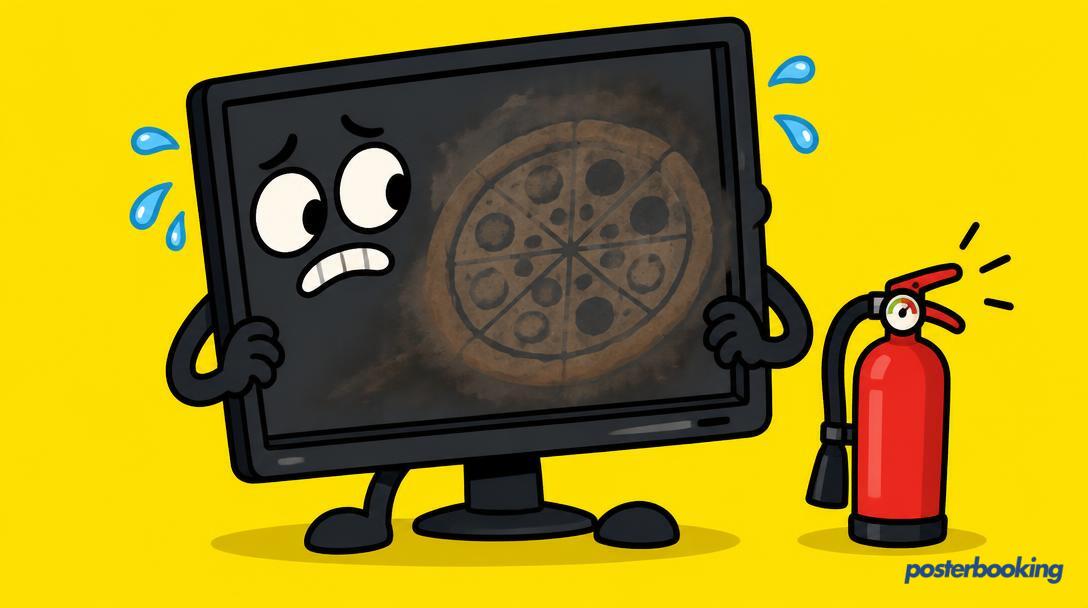
If you have ever walked past a shop window and seen the ghostly outline of a "SALE" sign floating over a video of a tropical beach, you have witnessed the tragedy of screen burn in. It is the digital equivalent of a tan line that refuses to fade, a permanent scar on what was once a pristine piece of technology. For digital signage users, screen burn in is the silent killer of professional presentation. It makes your high end displays look neglected, dated, and frankly, a bit cheap.
In this comprehensive guide for 2026, we are going to look at why screens get these permanent ghosts, which technologies are most at risk, and how you can ensure your digital signage remains crisp and clear for years to come. Whether you are using a high end OLED or a standard commercial LCD, understanding tv burn in is essential for protecting your investment.
Contents
- What is Screen Burn In?
- Image Retention vs. Screen Burn In: The Crucial Difference
- The Science of the Ghost: How it Happens
- Display Technologies and Their Risk Levels
- Why Digital Signage is Specifically Vulnerable
- Prevention Strategies: Content Rotation and Playlists
- Technical Fixes: Pixel Shifting and Brightness Management
- The Commercial vs. Consumer Display Debate
- Can You Actually Fix Burn In?
- How PosterBooking Protects Your Hardware
- Frequently Asked Questions
What is Screen Burn In?
Screen burn in refers to the permanent discolouration of a display caused by the unequal usage of pixels. When a static image stays on a screen for a prolonged period, the specific pixels responsible for that image are worked harder than the rest. Over time, these pixels lose their luminance or their ability to produce accurate colours at the same rate as their neighbours.
The result is a faint, permanent "ghost" image that remains visible regardless of what is currently being shown on the screen. While the term originated in the days of bulky CRT monitors and plasma televisions, it remains a very real threat in 2026, especially as we push for higher brightness and more vibrant colours in digital signage.
The Evolution of the Problem
Back in the day, if you left a static menu on a plasma screen for a weekend, you were almost guaranteed a permanent reminder of your "Burger and Chips" special. Modern displays are much more resilient, but they are not invincible. As we move towards thinner, brighter, and more energy efficient panels, the chemical and physical stresses on the display components have changed, but the fundamental risk of uneven wear remains.
Why It Matters for Your Business
A burnt in screen is a distraction. If you are trying to sell a luxury watch or a high end holiday, the last thing you want is the faint outline of a weather widget from three months ago cutting through the middle of your beautiful photography. It suggests a lack of attention to detail and can even make text harder to read, defeating the entire purpose of your digital signage.
Image Retention vs. Screen Burn In: The Crucial Difference
It is common for people to panic the moment they see a ghost image on their display. However, not all ghosts are permanent. Understanding the difference between image retention and screen burn in is vital for your peace of mind and your maintenance strategy.
Temporary Image Retention
Image retention, often called "ghosting" or "image persistence," is a temporary phenomenon. It happens when the liquid crystals in an LCD panel or the pixels in an OLED get "stuck" in a certain state after displaying a static image for a few hours. The good news is that this is usually reversible. If you turn the screen off or play a fast moving video for a while, the pixels usually return to their normal state.
Permanent Screen Burn In
Screen burn in is the permanent version of this problem. This is not a case of "stuck" pixels, but rather "worn out" pixels. The actual light emitting components have physically degraded. No amount of "pixel cleaning" software or power cycling will fix true burn in. Once it is there, it is there for the life of the panel.
Identifying the Difference
If you notice a ghost image, the first step is to change the content. Play a bright, colourful video with lots of movement for an hour. If the ghost vanishes, you had image retention. if the ghost remains exactly as it was, you are unfortunately dealing with screen burn in.
The Science of the Ghost: How it Happens
To prevent screen burn in, it helps to understand what is happening under the glass. Different display technologies have different physical reactions to static images.
The OLED Struggle
OLED (Organic Light Emitting Diode) screens are particularly susceptible because each pixel creates its own light. The "O" in OLED stands for organic, and like all organic things, these pixels age. If the pixels forming your company logo are constantly at 100 percent brightness while the background is black, those "logo pixels" will age faster. Eventually, they will not be able to shine as brightly as the pixels that were mostly off, creating a permanent dark patch in the shape of your logo.
The LCD and LED Perspective
LCD (Liquid Crystal Display) panels, which are often marketed as LED TVs (referring to the backlight), work differently. They use a backlight that shines through a layer of liquid crystals. While they are far less likely to suffer from "burn," they can suffer from image persistence. In some cases, the constant heat and electrical charge on a specific area of the liquid crystal layer can cause a permanent shift in how those crystals react, leading to a permanent ghost image that looks remarkably like burn in.
Heat: The Hidden Enemy
Heat is a major factor in pixel degradation. If your digital signage is in a poorly ventilated enclosure or direct sunlight, the internal temperature of the panel rises. High temperatures accelerate the chemical degradation of pixels, making screen burn in happen much faster than it would in a cool, air conditioned office.
Display Technologies and Their Risk Levels
Not all screens are created equal. When choosing hardware for your digital signage, the risk of tv burn in should be a primary consideration.
OLED: The High Risk, High Reward Choice
OLEDs offer incredible contrast and stunning colours, making them a favourite for high end retail. However, they are the most vulnerable to screen burn in. In a digital signage environment where the screen might be on for 18 hours a day with static headers or footers, an OLED requires very careful management.
LCD (LED-Backlit): The Reliable Workhorse
Most commercial digital signage uses LCD technology. These are much more resistant to permanent burn in than OLEDs. They are designed for long hours and high brightness. While they can still suffer from image retention, it is rarely permanent if the screen is managed correctly.
Direct View LED: The Modern Standard
Direct View LED (the kind you see in stadiums or large video walls) consists of individual tiny LEDs. These are generally very robust. While individual LEDs can dim over thousands of hours, the risk of a "burnt in" image in the traditional sense is much lower than with OLED, provided the heat is managed.
QLED: The Middle Ground
QLED is essentially a fancy LCD with a quantum dot layer. It offers better colours than standard LCD but retains the same high resistance to burn in. For many signage applications, QLED is the "sweet spot" between visual quality and long term durability.
Why Digital Signage is Specifically Vulnerable
A television in a living room rarely gets burn in because the content is constantly changing. People watch movies, play games, and switch channels. Digital signage, however, is a different beast entirely.
Static Elements are the Culprit
Digital signage often relies on static elements to convey information. This might be:
- A restaurant menu that never changes.
- A "News Taker" bar at the bottom of the screen.
- A company logo in the top right corner.
- A clock or weather widget.
These elements are the primary cause of screen burn in. If a white logo sits on a black background for 12 hours a day, 365 days a year, that logo will eventually become a permanent part of the screen.
High Brightness Requirements
Signage is often placed in brightly lit environments, such as shop fronts or malls. To be visible, the screens are often set to 100 percent brightness. High brightness means more current flowing through the pixels, which means more heat and faster degradation. A screen running at 50 percent brightness will last significantly longer than one running at maximum capacity.
24/7 Operations
Many businesses leave their signage on 24/7. Even if the shop is closed, the screen is working. This constant stress gives the pixels no time to "rest" or cool down, drastically accelerating the timeline for potential screen burn in.
Prevention Strategies: Content Rotation and Playlists
The most effective way to prevent screen burn in is through smart content management. You do not need to change your hardware; you just need to change what you show.
The Power of the Playlist
Instead of showing a single static image, use a playlist. Even if you only have one main message, you can create three or four variations of that message. Change the background colour, move the text from the left to the right, or swap the images every few minutes. This ensures that no single pixel is stuck doing the same job for too long.
Content Rotation
If you must display a menu, do not leave the same layout up all day. Use a subtle transition every 10 minutes that shifts the layout slightly. To the casual observer, it looks like a nice animation. To the screen, it is a life saving exercise that redistributes the load across different pixels.
Video is Your Friend
Whenever possible, use video instead of static images. Even a slow moving background video behind your text can significantly reduce the risk of tv burn in. The constant movement ensures that pixels are constantly changing their colour and brightness levels.
Technical Fixes: Pixel Shifting and Brightness Management
Beyond content, there are several technical settings you can use to protect your displays.
Pixel Shifting
Many modern professional displays (and high end consumer ones) have a feature called "Pixel Shift." This technology subtly moves the entire image by a few pixels every few minutes. The movement is so small that the human eye usually cannot detect it, but it ensures that the edges of static objects are not constantly hitting the exact same pixels. It is a simple but effective tool in the fight against screen burn in.
Auto Brightness and Scheduling
Do not run your screen at full brightness if you do not have to. Use the built in light sensors to dim the screen when the sun goes down. Furthermore, use a scheduler to turn the screens off entirely when the business is closed. There is no point in risking screen burn in at 3 AM when nobody is there to see your advert.
The "Black Screen" Myth
Some people think displaying a black screen is a good way to "rest" an LCD. In reality, for an LCD, a black screen still requires the backlight to be on (unless it is an OLED). The best way to rest a screen is to turn it off completely.
The Commercial vs. Consumer Display Debate
It is very tempting to go to a local electronics store, buy a cheap 55 inch consumer TV, and hang it in your shop. While this saves money upfront, it is a recipe for screen burn in disaster.
Built for Different Purposes
Consumer TVs are designed to be used for maybe 4 to 6 hours a day. They are designed for varied content like movies and sports. They often lack the robust cooling systems and high quality components found in commercial displays.
Commercial Grade Durability
Commercial displays are specifically engineered for the rigours of digital signage. They are rated for 16/7 or even 24/7 operation. They have better heat dissipation, thicker internal components, and often come with specific firmware features designed to prevent image retention and screen burn in.
Warranty Woes
This is the big one. Most consumer TV warranties are voided if the screen is used for commercial purposes or digital signage. If you get screen burn in on a consumer TV in your shop, the manufacturer will likely refuse to repair it. Commercial displays come with warranties that actually cover these use cases.
Can You Actually Fix Burn In?
The short answer is: usually, no. Once the pixels are physically degraded, you cannot "un-burn" them. However, there are a few things you can try if you notice the problem early.
The "Jiggle" Method
There are various videos on YouTube and specialised software tools that display rapidly flashing, high contrast colours. The idea is to "exercise" the pixels and try to even out the wear. While this can be very effective for temporary image retention, it rarely does anything for permanent screen burn in.
Adjusting the Content to Hide the Burn
If you already have burn in, you might be able to hide it by choosing content that matches the ghost. If you have a ghost of a logo in the corner, try placing a new, different logo in that same spot. It is not a fix, but it can extend the usable life of a damaged screen.
Panel Replacement
For high end displays, you might be able to replace the panel itself while keeping the electronics. However, the cost of a new panel plus labour is often close to the cost of a brand new screen. In most cases of digital signage screen burn in, the best solution is prevention rather than cure.
How PosterBooking Protects Your Hardware
Using a professional digital signage platform like PosterBooking is one of the best ways to prevent screen burn in without having to think about it every day.
Dynamic Scheduling
PosterBooking allows you to set precise schedules for your screens. You can ensure they turn off automatically at night, giving the pixels a much needed rest and reducing the total "on time" that leads to degradation.
Easy Playlist Management
The core of PosterBooking is the playlist. Because it is so easy to add and reorder content, you are encouraged to use multiple images and videos rather than one static file. By cycling through different layouts and media types, you naturally prevent the conditions that lead to screen burn in.
Remote Monitoring
PosterBooking lets you see what is playing on your screens from anywhere. If you notice a static image has been stuck for days due to a staff member accidentally pausing a playlist, you can fix it remotely before any permanent damage occurs.
Supporting All Media Types
Whether it is a MP4 video, a subtle GIF, or a series of JPEGs, PosterBooking handles them all. By mixing these media types, you ensure your pixels are constantly being challenged and refreshed, which is the best defence against tv burn in.
Frequently Asked Questions
Does screen burn in happen on all types of screens?
While almost any screen can suffer from some form of image persistence, the risk level varies wildly. OLEDs are the most vulnerable, followed by older Plasma screens. Standard LCD and LED screens are much more resistant, though they can still suffer from temporary image retention if left on for extreme periods with static content.
How long does it take for screen burn in to occur?
There is no set time, as it depends on brightness, heat, and the specific content. On a high brightness OLED, a static image could start showing signs of retention within a few days of 24/7 use. On a commercial LCD, it might take months or even years of showing the exact same image before any permanent damage is visible.
Is screen burn in covered under standard warranties?
For consumer TVs, the answer is almost always no. For commercial grade displays, it depends on the manufacturer. Some high end commercial warranties do cover image persistence, but they often have strict clauses about how many hours a day the screen was used and whether prevention features were enabled.
Can I fix OLED burn in with a software update?
No. Software updates can sometimes include "pixel refreshers" that try to even out the wear by dimming other pixels to match the worn ones, but this actually reduces the overall brightness and lifespan of your screen. You cannot physically repair the organic light emitting diodes with software.
Does lowering the brightness really prevent burn in?
Yes, absolutely. Heat and electrical stress are the primary drivers of pixel degradation. By lowering the brightness from 100 percent to 70 percent, you can significantly increase the lifespan of the display and drastically reduce the speed at which any potential burn in develops.
What is the difference between pixel shifting and screen savers?
A screen saver completely replaces the image with something else (like a moving animation) to prevent static images. Pixel shifting is much more subtle; it keeps your content on the screen but moves it by a few pixels every few minutes so the edges of your images are not constantly hitting the same spot.
Should I use a screensaver on my digital signage?
In a professional setting, a traditional screensaver (like a bouncing logo) is usually not ideal because you want your message to be visible. Instead of a screensaver, use a well designed playlist that rotates through different pieces of content. This achieves the same protection as a screensaver while still serving your business goals.
The Future of Screen Longevity
As we look further into 2026 and beyond, display technology continues to evolve. MicroLED promises the incredible contrast of OLED without the organic degradation issues, potentially making screen burn in a thing of the past. However, until these technologies become affordable for the average business, the responsibility for screen health lies with you.
By choosing commercial grade hardware, managing your brightness, and using a versatile platform like PosterBooking to keep your content moving, you can ensure your digital signage remains a vibrant asset rather than a ghostly liability. Don't let your "Lunch Special" haunt your screen forever; keep those pixels moving and your displays will thank you for it.
Ready to protect your screens with smart scheduling and dynamic playlists? Join over 87,426 users who trust PosterBooking. Get started today with your first 10 screens for free at https://posterbooking.com.