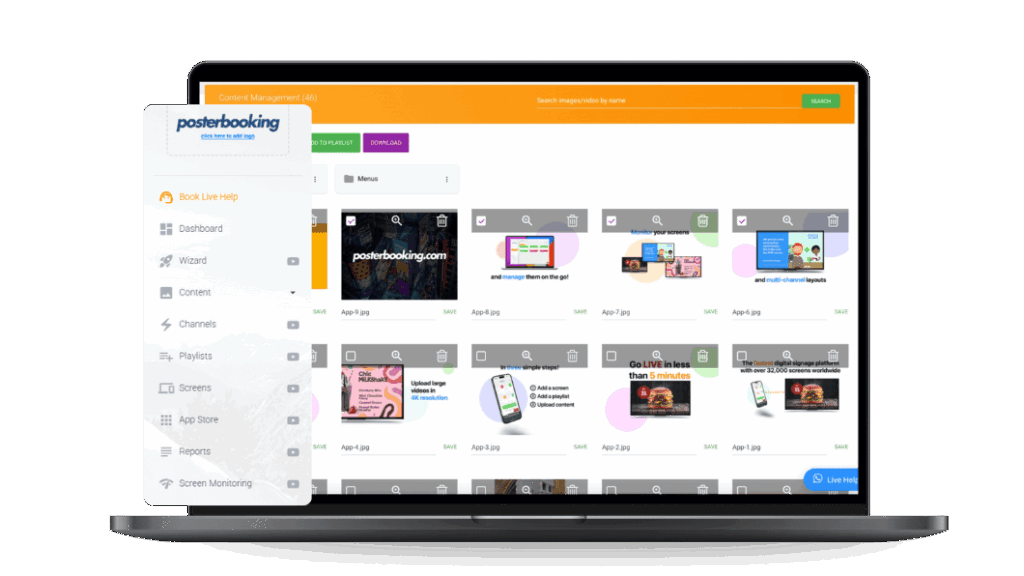
You can automatically launch PosterBooking when your Android device starts and automatically reopen PosterBooking if the app crashes or stops running.
This setup uses AppRelaunch Pro, an Android app designed to monitor another app and restart it when necessary. This is useful for digital signage screens that need to keep running without someone manually checking the device.
Table Of Contents
- Why Auto-Launch PosterBooking on Android?
- Step 1: Install PosterBooking on Your Android Device
- Step 2: Install AppRelaunch Pro
- Step 3: Select PosterBooking
- Step 4: Configure the Restart Settings
- Step 5: Test Automatic Relaunch
- What Happens When the Android Device Restarts?
- What Happens If PosterBooking Crashes?
- Keep PosterBooking Running Automatically on Android
- Frequently Asked Questions
- How can I make PosterBooking automatically restart if the app crashes on my Android device?
- Can PosterBooking launch automatically when my Android screen turns on?
- What devices is PosterBooking compatible with?
- How much does it cost to use PosterBooking for multiple screens?
- How long does it take to set up PosterBooking on a new device?
- Join PosterBooking for FREE
Why Auto-Launch PosterBooking on Android?
Digital signage screens often run for long periods without anyone actively using the Android device.
A power outage, device restart, or app crash can stop your signage from displaying. Someone would normally need to open PosterBooking again manually.
With AppRelaunch Pro configured, PosterBooking can return automatically.
The setup handles two important situations:
- Android device restarts: PosterBooking can be launched again after the device starts.
- PosterBooking crashes or stops: AppRelaunch Pro can detect the issue and reopen PosterBooking.
This helps keep your digital signage running with less manual intervention.
Step 1: Install PosterBooking on Your Android Device
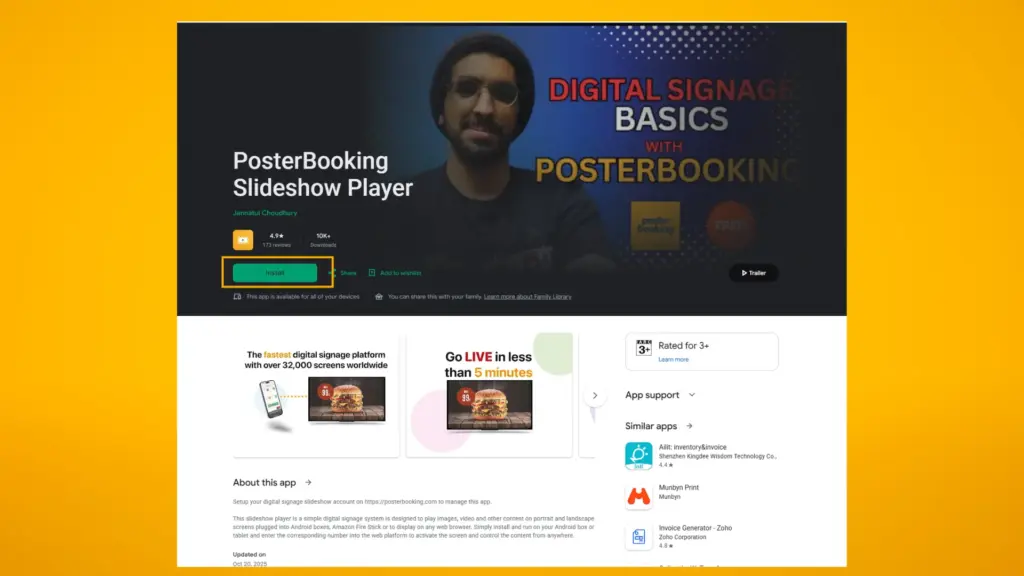
Make sure the PosterBooking Digital Signage Player is installed and configured on your Android device.
Open PosterBooking and connect the device to your PosterBooking account as you normally would.
Confirm that your assigned playlist or content is displaying correctly before configuring automatic relaunching.
Step 2: Install AppRelaunch Pro
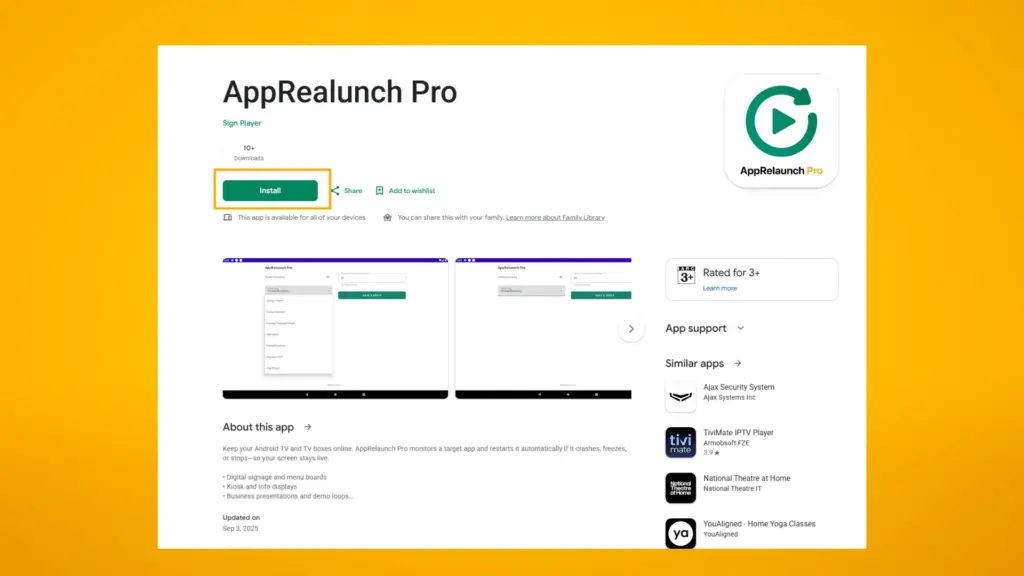
Open the Google Play Store on your Android device and install AppRelaunch Pro.
AppRelaunch Pro is designed to monitor an Android application and launch it again when the selected application is no longer running correctly.
Once installed, open AppRelaunch Pro.
Step 3: Select PosterBooking
Inside AppRelaunch Pro, select PosterBooking as the application you want to monitor.
This tells AppRelaunch Pro that PosterBooking is the application that should remain running on the device.
Step 4: Configure the Restart Settings
Configure the monitoring and restart settings inside AppRelaunch Pro.
You can set a restart timeout that determines how the app handles PosterBooking when it stops responding or is no longer running.
Enable monitoring once your settings are configured.
AppRelaunch Pro will now monitor PosterBooking in the background.
Step 5: Test Automatic Relaunch
Test the setup before leaving the Android device unattended.
Close PosterBooking or simulate a situation where PosterBooking stops running.
AppRelaunch Pro should automatically launch PosterBooking again based on your configured settings.
You should also restart the Android device to confirm that the setup continues working after a reboot.
What Happens When the Android Device Restarts?
AppRelaunch Pro’s background service is designed to survive Android device reboots.
Once the device has started again, the configured monitoring process can resume and PosterBooking can be launched without someone manually opening the app.
This is particularly useful for unattended digital signage installations.
For example:
Power interruption → Android device restarts → AppRelaunch Pro resumes → PosterBooking launches → Digital signage resumes
What Happens If PosterBooking Crashes?
AppRelaunch Pro monitors the selected Android application.
If PosterBooking crashes, freezes, or stops running, AppRelaunch Pro can automatically relaunch it.
The process becomes:
PosterBooking stops → AppRelaunch Pro detects it → PosterBooking relaunches → Content continues displaying
This reduces the chance of a screen remaining blank or showing the Android home screen until someone notices the problem.
Keep PosterBooking Running Automatically on Android
Using PosterBooking with AppRelaunch Pro provides a simple way to make Android digital signage more resilient.
PosterBooking handles the content displayed on your screens, while AppRelaunch Pro helps ensure PosterBooking returns after a device restart or unexpected app crash.
Once configured, your Android signage device can recover from common interruptions without requiring someone to manually reopen PosterBooking.How to Auto-Launch PosterBooking on Android After Startup or a Crash
You can automatically launch PosterBooking when your Android device starts and automatically reopen PosterBooking if the app crashes or stops running.
This setup uses AppRelaunch Pro, an Android app designed to monitor another app and restart it when necessary. This is useful for digital signage screens that need to keep running without someone manually checking the device.
Frequently Asked Questions
How can I make PosterBooking automatically restart if the app crashes on my Android device?
You can use an Android app called AppRelaunch Pro to monitor the PosterBooking player and restart it automatically if it stops running. This third party tool is specifically designed to keep digital signage apps active without manual intervention.
Can PosterBooking launch automatically when my Android screen turns on?
Yes, you can configure AppRelaunch Pro to launch PosterBooking automatically whenever your Android device finishes booting up. This ensures your digital signage resumes displaying content immediately after a power outage or a scheduled reboot.
What devices is PosterBooking compatible with?
PosterBooking works on a wide variety of hardware including Fire TV Stick, Amazon Signage Stick, Android TV, Chromebox, Windows, and Raspberry Pi. The software is used on 120,000 screens globally across more than 150 countries.
How much does it cost to use PosterBooking for multiple screens?
PosterBooking offers a free trial for up to 10 screens, though these screens will eventually show a watermark unless you upgrade to a paid plan. For larger installations, you can choose the Business Pro plan for 520 dollars per month which supports unlimited screens.
How long does it take to set up PosterBooking on a new device?
Setting up PosterBooking typically takes about 2 minutes to complete. Once the app is installed and connected to your account, you can use the AppRelaunch Pro setup to ensure the signage runs unattended.
Join PosterBooking for FREE
Get a free 1:1 PosterBooking demo and see how to unlock 10 free screens with zero setup headaches.