
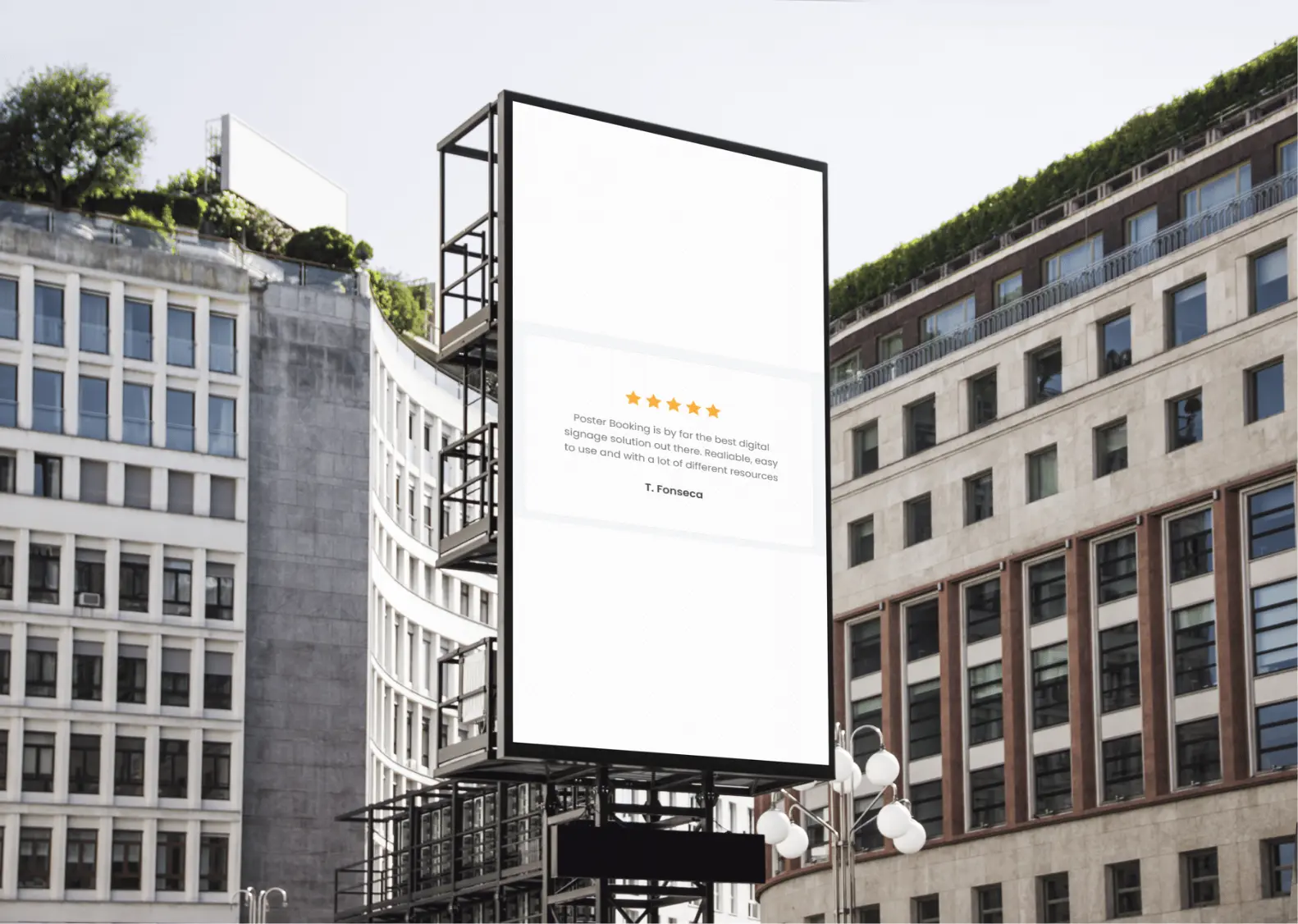
To display customer reviews on digital signage, collect verified reviews from platforms like Google Reviews, Facebook, or Yelp, convert them into display-ready content, upload them to a digital signage software like PosterBooking, create a playlist, and assign that playlist to your screen. Reviews can be shown as static slides, rotating testimonials, QR-enabled review prompts, or live web feeds.
Customer reviews work best when formatted for visibility, scheduled strategically, and refreshed regularly. Digital signage software such as PosterBooking allows you to upload review graphics, display live web pages, combine reviews with promotions, and control playback timing remotely.
Table Of Contents
- Step 1: Gather Verified Customer Reviews
- Step 2: Format Reviews for Screen Display
- Step 3: Upload Reviews to Digital Signage Software
- Step 4: Create a Customer Review Playlist
- Step 5: Assign the Review Playlist to Your Screen
- Alternative Method: Display Live Reviews
- Advanced Strategies to Consider for displaying Reviews
- 1. Combine Reviews with QR Codes
- 2. Highlight Reviews by Category
- 3. Add Revenue-Driven Reviews
- 4. Schedule Reviews During High Traffic Periods
- Where to Place Customer Review Screens
- Common Mistakes to Avoid
- Final Summary
- Frequently Asked Questions
- How do I display customer reviews on my digital signage TV?
- Is PosterBooking free to use for showing reviews?
- How long should each review slide stay on the screen?
- What devices can I use to run my review display?
- Can I show live Google reviews as they come in?
Step 1: Gather Verified Customer Reviews
Collect reviews from trusted platforms. Use Google Business Profile for Google Reviews. Use Facebook Business Page for Facebook recommendations. Use Yelp if your industry relies on Yelp visibility.
Log into your business profile on the review platform. Copy the review text. Capture the reviewer’s first name and rating. Do not modify the wording of the review. Keep authenticity intact.
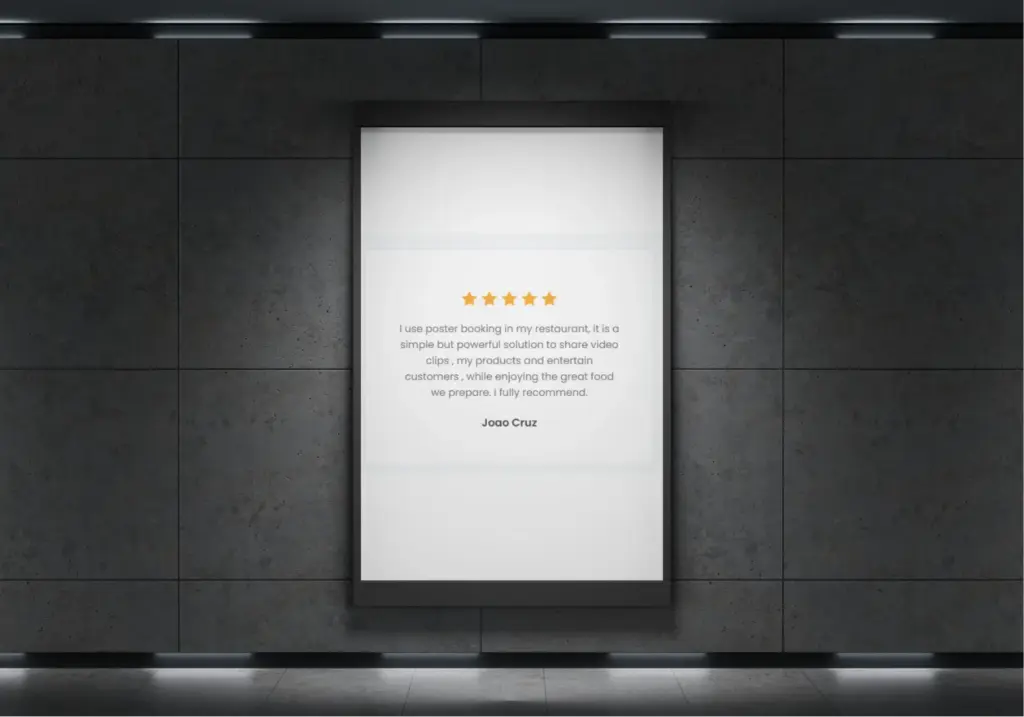
Choose reviews that are specific. A review that says “Great service” is weaker than “The 20-minute turnaround time saved my lunch break.” Specific reviews convert better because they reduce customer uncertainty.
Aim for 5-15 strong reviews to build a rotating testimonial loop.
Step 2: Format Reviews for Screen Display
Design review slides with readability in mind. Use large fonts. Use high contrast colors. Keep each review under 25-40 words if possible.
Include:
- Reviewer first name or initials
- Star rating graphic
- Review text
- Platform source (Google, Facebook, Yelp)
Use 1920 x 1080 resolution for Full HD screens. Keep safe margins so text does not touch screen edges.
If using digital signage software like PosterBooking, save the review as JPG or PNG before uploading.
Step 3: Upload Reviews to Digital Signage Software
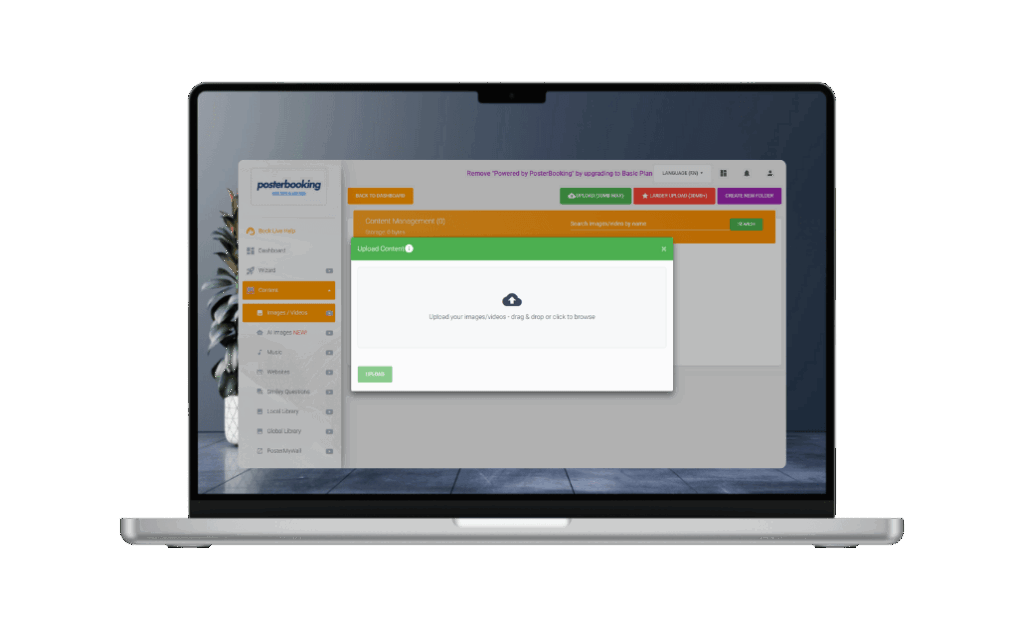
Open your digital signage dashboard.
Go to Content. Select Images/Videos. Click Upload. Select your review slides. Wait for upload to complete.
Digital signage platforms such as PosterBooking store uploaded files in the cloud and sync them to connected screens automatically.
Step 4: Create a Customer Review Playlist
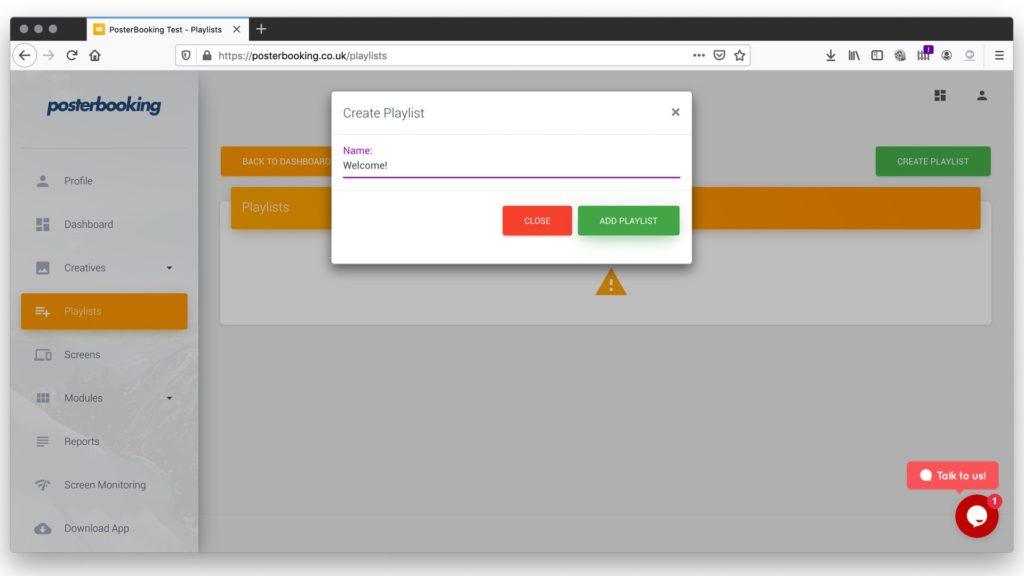
Go to Playlists in your digital signage dashboard. Click Create Playlist. Name it “Customer Reviews” or “Testimonials.”
Click Add Content. Select the uploaded review slides. Add them to the playlist.
Set slide duration between 8 and 12 seconds per review. This allows viewers enough time to read comfortably from 10-15 feet away.
Reorder reviews strategically. Place your strongest review first. Keep total loop duration under 90 seconds to maintain engagement.
Click Save.
Step 5: Assign the Review Playlist to Your Screen
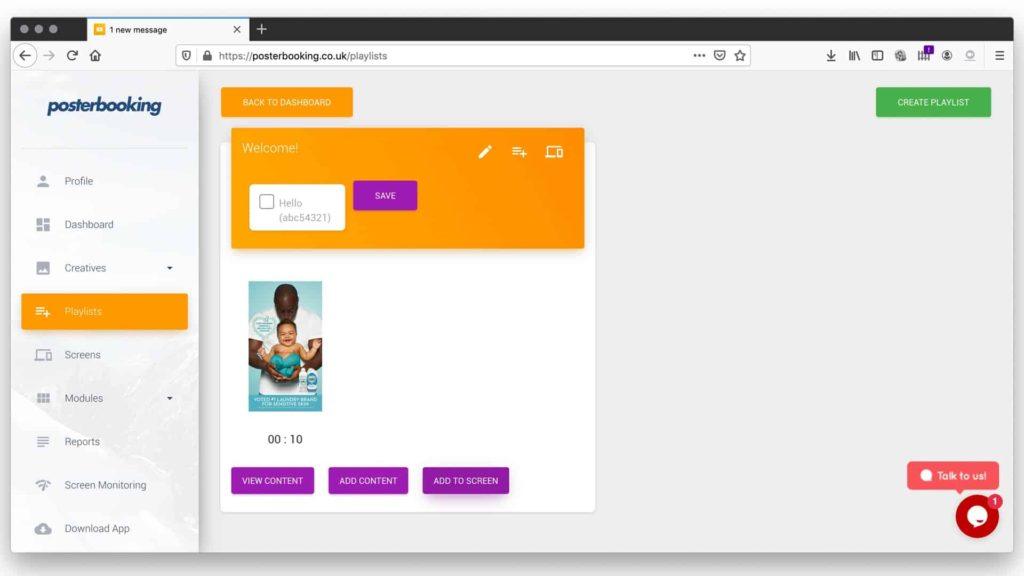
Go to Screens in your dashboard. Select the display screen.
Click Add/Edit Playlist. Choose the “Customer Reviews” playlist. Click Save.
The reviews now begin displaying immediately. The playlist loops automatically.
Alternative Method: Display Live Reviews
- Digital signage systems that support web display can show live review pages.
- Open your review platform page in a browser. Copy the URL.
- Go to Content. Select Websites. Click Create URL. Paste the review page link. Save it.
- Add the saved URL to a playlist. Assign the playlist to a screen.
- Live review display updates automatically when new reviews are published.
- Use caution with live feeds. Negative reviews will also appear. Moderate carefully if brand control is critical.
Advanced Strategies to Consider for displaying Reviews
1. Combine Reviews with QR Codes
Add a QR code slide after 3-4 review slides.
The QR code should link directly to your Google Review page.
This increases review generation because customers see social proof before being asked to leave feedback.
2. Highlight Reviews by Category
Segment reviews by theme:
- Speed
- Customer service
- Product quality
- Cleanliness
Rotate themed reviews during relevant business hours. For example, display “fast service” reviews during peak lunch hours.
3. Add Revenue-Driven Reviews
Show reviews that mention specific products.
Example: “The salmon bowl is worth every dollar.”
Place that review next to a product slide featuring the salmon bowl.
This creates contextual persuasion.
4. Schedule Reviews During High Traffic Periods
Display review playlists during high foot traffic hours.
Example: Lunch rush 11:30 AM-2:00 PM Evening peak 5:00 PM-8:00 PM
Digital signage scheduling ensures testimonials appear when influence matters most.
Where to Place Customer Review Screens
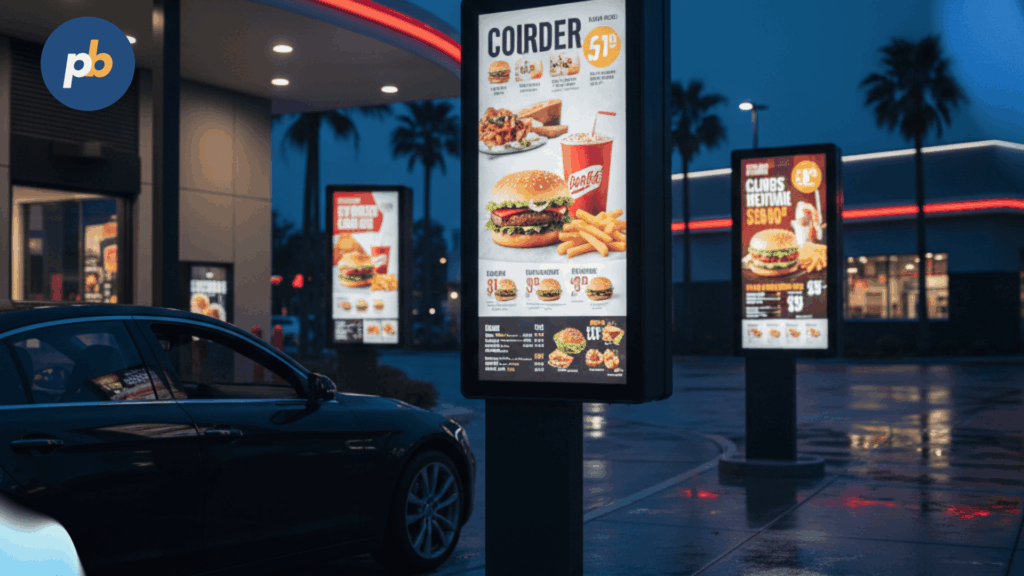
Place review displays near checkout counters. Place review screens in waiting areas. Place review screens beside menu boards.
People waiting are more likely to read testimonials.
Avoid placing review screens where viewing time is less than 5 seconds.
Common Mistakes to Avoid
- Do not overcrowd slides with long paragraphs.
- Do not use tiny fonts.
- Do not display outdated reviews from 5+ years ago.
- Do not show negative reviews unless intentionally addressing feedback publicly.
- Do not create loops longer than 2 minutes.
Final Summary
Display customer reviews on digital signage by collecting verified reviews, formatting them into readable slides, uploading them to your signage software, creating a playlist, and assigning it to your screen. Use 8-12 second durations. Keep loops under 90 seconds. Combine reviews with QR codes to generate more feedback. Place screens where customers dwell.
Digital signage platforms such as PosterBooking make this process simple by allowing cloud uploads, playlist control, live web display, and scheduling across multiple screens.
Frequently Asked Questions
How do I display customer reviews on my digital signage TV?
You can show reviews on your TV by collecting verified feedback from platforms like Google or Yelp and converting them into high contrast slides for your digital signage software. After uploading the graphics to a platform like PosterBooking, you simply add them to a playlist and assign it to your screen. The software then loops these testimonials automatically for your customers to see.
Is PosterBooking free to use for showing reviews?
PosterBooking offers a free plan for up to 10 screens, though these screens will show a watermark after an initial 3 month trial period. For a watermark free experience, the Home Basic plan costs $52 per month for 10 screens, while the Business Pro plan is $520 per month for unlimited screens. Users with 11 or more screens on a standard plan pay $6.49 per screen every month.
How long should each review slide stay on the screen?
You should set each review slide to display for between 8 and 12 seconds to ensure viewers have enough time to read comfortably. Keeping the total playlist loop under 90 seconds helps maintain customer engagement. This timing allows people to digest the feedback even from a distance of 10 to 15 feet.
What devices can I use to run my review display?
PosterBooking is compatible with a wide range of hardware including the Amazon Fire TV Stick, Amazon Signage Stick, and Android TV devices. It also works on Chromebox, Windows computers, and Raspberry Pi hardware. The system supports offline playback by caching your content directly on these devices.
Can I show live Google reviews as they come in?
Yes, you can display live reviews by using the web display feature in your signage software to link directly to your review platform URL. However, you must be cautious because negative reviews will also appear automatically if they are published online. Many businesses prefer using static slides to maintain better control over the content shown to the public.