Table Of Contents
Displaying restaurant menus on a digital screen is an excellent way to enhance customer experience. With PosterBooking digital signage and an Amazon Signage Stick, you can create and display menu content quickly and efficiently.
Here’s a step-by-step guide to get started.
Step 1: Set Up Your Amazon Signage Stick
- Plug the Amazon Signage Stick into your restaurant’s TV or screen.
- Connect the signage stick to Wi-Fi and ensure it’s ready for use.
- Download the PosterBooking app from the Amazon App Store.
Pro Tip: The Amazon Signage Stick includes 12 months of free digital signage with PosterBooking, making it a cost-effective solution.
Step 2: Connect Your Screen to PosterBooking
- Open the PosterBooking app and go to the Screens section.
- Select Add Screen and then hit Add Screen again.
- Enter the unique code displayed when you first open the app.
- Assign a name to your screen (e.g., “Restaurant Menu Display”) and click Add Screen.
- Your screen is now linked to PosterBooking and ready for content.
Step 3: Upload Your Menu Content
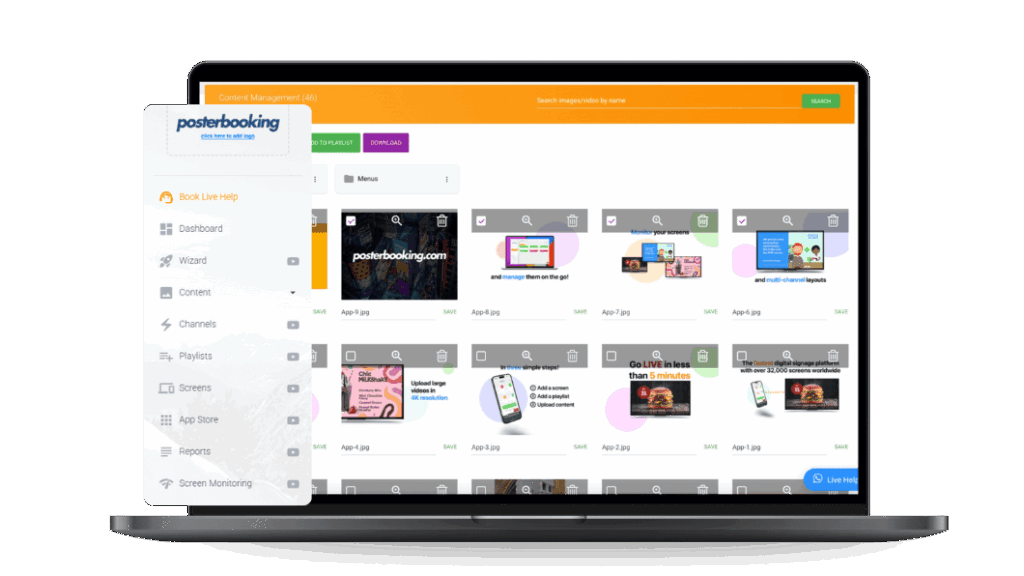
- Navigate to the Content section in the PosterBooking app and select Images/Videos.
- Upload the menu image you wish to display.
- Ensure the menu is high-resolution and formatted correctly to match your screen’s aspect ratio.
Example: For a Full HD screen (1920×1080), make sure the menu image is designed in these dimensions to avoid stretching or distortion.
Step 4: Create a Playlist for Your Menu
- Go to the Playlists section and select Create Playlist.
- Name your playlist (e.g., “Menu Display”).
- Click Add Content, select the uploaded menu image, and add it to the playlist.
- If you have multiple menu items or promotions, add additional images to create a slideshow.
Pro Tip: Set the slide duration to control how long each menu or promotion is displayed.
Step 5: Assign the Playlist to Your Screen
- Return to the Screens section and locate your connected screen.
- Tap the plus (+) button under your screen to edit its playlist.
- Select the Menu Display playlist and click Save.
- The menu will instantly appear on your screen.
Step 6: Optimize Your Menu Display
- Update Regularly: Keep your menu content fresh by adding seasonal items or promotions.
- Use Scheduling: PosterBooking allows you to schedule playlists. Display breakfast, lunch, or dinner menus at specific times.
- Engage Customers: Add dynamic visuals or videos showcasing featured dishes to enhance customer interest.
Final Thoughts
Using PosterBooking with the Amazon Signage Stick, restaurants can easily modernize their menu displays, improve readability, and attract customer attention. This setup is quick, cost-effective, and delivers professional results for any restaurant environment.
Frequently Asked Questions
How do I set up a digital menu for my restaurant using an Amazon Signage Stick?
You can set up your restaurant menu by plugging the Amazon Signage Stick into your TV and downloading the PosterBooking app from the Amazon App Store. After connecting your screen using the unique code displayed, you simply upload your menu image and assign it to a playlist. The entire setup process is designed to be quick and usually takes about 2 minutes to complete.
Is PosterBooking free to use for my restaurant screens?
PosterBooking is free for up to 10 screens, though these screens will show a watermark after a initial 3 month trial period. If you need more displays, pricing starts at $6.49 per screen per month from the 11th screen onwards. The Amazon Signage Stick also includes 12 months of free digital signage with the service.
Will my digital menu still play if the Wi-Fi goes out?
Yes, your digital menus will continue to work without an internet connection because the system supports offline playback via caching. The Amazon Signage Stick only needs to be connected to Wi-Fi during the initial setup and when you want to update your content. This ensures your menu stays visible even if the restaurant internet goes down.
What devices can I use to run PosterBooking for my digital menus?
PosterBooking works on a wide range of hardware including the Amazon Signage Stick, Fire TV Stick, and Android TV devices. You can also run the software on Windows computers, Raspberry Pi, Chromebox, or specialized Amazon Signage Displays. This flexibility allows you to choose the hardware that best fits your restaurant budget.
Can I schedule different menus to appear at different times of the day?
You can manage different menus by using the scheduling feature in PosterBooking to switch playlists at specific times. This allows you to automatically display breakfast, lunch, or dinner menus throughout the day without manual intervention. You can also add multiple images to a single playlist to create a slideshow for featured promotions.
Join PosterBooking for FREE
Get a free 1:1 PosterBooking demo and see how to unlock 10 free screens with zero setup headaches.