
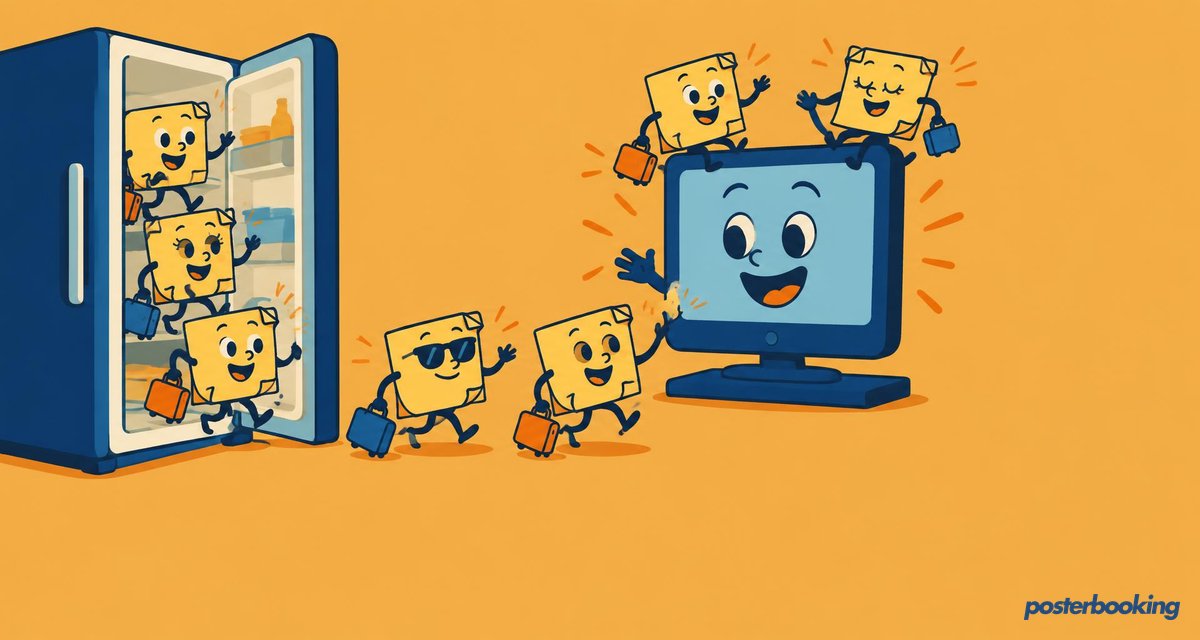
In 2025, digital signage is revolutionizing how we share information, and PosterBooking makes it easier than ever to display notes, announcements, or updates on screens. Whether you want to turn your smart screen into a digital notice board or use an Amazon Signage Stick for added flexibility, this guide walks you through the process step-by-step.
Table Of Contents
- Step 1: Set Up Your Screen
- 1.1. Choose Your Display Method
- 1.2. Connect Your Screen to PosterBooking
- Step 2: Prepare Your Notes Content
- 2.1. Create the Notes
- 2.2. Upload the Notes to PosterBooking
- Step 3: Create a Playlist for Your Notes
- Step 4: Assign the Playlist to Your Screen
- Step 5: Enhance Your Digital Notice Board
- 5.1. Schedule Notes for Specific Times
- 5.2. Combine Notes with Other Content
- 5.3. Update Content Remotely
- Why PosterBooking Business Pro Plan is Perfect for Digital Notice Boards
- Final Thoughts
- Frequently Asked Questions
- How do I connect my screen to PosterBooking?
- What is the best way to create notes for digital signage?
- What devices can I use to display my notes?
- How much does it cost to use PosterBooking?
- Can I change the notes on my screen remotely?
Step 1: Set Up Your Screen
1.1. Choose Your Display Method
- Use a smart screen with the PosterBooking app.
- For non-smart screens, attach an Amazon Fire Stick or the Amazon Signage Stick, which includes a free year of PosterBooking Business Pro subscription.
1.2. Connect Your Screen to PosterBooking
- Open the PosterBooking app on your screen.
- Navigate to the Add Screen section on your PosterBooking dashboard.
- Enter the unique code displayed on the screen into the dashboard.
- Assign a name to the screen (e.g., “Office Notice Board”).
- Click Add Screen to finalize the setup.
Step 2: Prepare Your Notes Content
2.1. Create the Notes
- Use tools like Canva, Microsoft PowerPoint, or Google Slides to design your notes.
- Include:
- Clear headings (e.g., “Meeting Schedule” or “Holiday Announcement”).
- Bullet points for key details.
- Fonts large enough to be legible from a distance.
- Save your design as a high-resolution image file (PNG or JPEG).
Tip: Stick to a 16:9 aspect ratio (1920×1080 pixels) for optimal display.
2.2. Upload the Notes to PosterBooking
- Go to the Content section in the PosterBooking dashboard.
- Select Images/Videos and click Upload Content.
- Upload the notes image file(s) to the content library.
Step 3: Create a Playlist for Your Notes
- Navigate to the Playlists section in the PosterBooking dashboard.
- Click Create Playlist and name it (e.g., “Notice Board”).
- Add your notes to the playlist:
- Click Add Content.
- Select the uploaded notes from your content library.
- Save the playlist.
Tip: If you have multiple notes, add them all to the same playlist and set display durations (e.g., 10 seconds per note).
Step 4: Assign the Playlist to Your Screen
- Go to the Screens section and locate the connected screen.
- Click the plus (+) button under the screen to assign a playlist.
- Select the Notice Board playlist you just created.
- Click Save to apply the playlist to the screen.
Your notes will now appear on the screen instantly.
Step 5: Enhance Your Digital Notice Board
5.1. Schedule Notes for Specific Times
- Use PosterBooking’s scheduling feature to display time-sensitive notes (e.g., “Morning Updates” from 8-10 AM).
5.2. Combine Notes with Other Content
- Add banners, images, or videos to the playlist to make the display more dynamic.
- Example: Display motivational quotes or important dates alongside announcements.
5.3. Update Content Remotely
- Update or replace notes anytime using the PosterBooking dashboard. Changes will reflect on the screen instantly.
Why PosterBooking Business Pro Plan is Perfect for Digital Notice Boards
With PosterBooking’s Business Pro Plan, managing digital signage in 2025 becomes effortless. Here’s why:
- UNLIMITED Screens: Scale your notice boards across multiple locations.
- UNLIMITED Playlists: Create playlists for different teams, departments, or time zones.
- UNLIMITED Content: Upload as many notes, images, or videos as you need.
- Whitelabel Features: Customize your notice board with your organization’s branding.
- No Watermark: Maintain a professional look on all displays.
- FREE 30-Day Trial: Experience all features risk-free, with no contracts and the flexibility to cancel anytime.
Final Thoughts
Displaying notes on screens with PosterBooking and an Amazon Signage Stick is an innovative way to share information effectively in 2025. Whether for office announcements, school updates, or retail promotions, digital notice boards ensure your message is seen.
Take advantage of PosterBooking’s Business Pro Plan today with a FREE 30-day trial and elevate how you share information on screens. Start now, and turn any screen into a dynamic, easy-to-manage notice board!
Frequently Asked Questions
How do I connect my screen to PosterBooking?
You can use a smart screen with the PosterBooking app or a non smart screen with an Amazon Fire Stick or Amazon Signage Stick. The setup involves opening the app on your screen and entering the unique code into the PosterBooking dashboard to link the device. This process typically takes about 2 minutes to complete.
What is the best way to create notes for digital signage?
You should design your notes using tools like Canva or PowerPoint and save them as PNG or JPEG image files. For the best display quality, it is recommended to use a 16:9 aspect ratio at 1920 by 1080 pixels. Large fonts and bullet points should be used to ensure legibility from a distance.
What devices can I use to display my notes?
PosterBooking works on various hardware including Fire TV Stick, Amazon Signage Stick, Android TV, Chromebox, Windows, and Raspberry Pi. The Amazon Signage Stick is a particularly good option as it includes a free year of the PosterBooking Business Pro subscription. It also supports offline playback via caching.
How much does it cost to use PosterBooking?
PosterBooking is free for up to 10 screens, though a watermark appears after a 3 month trial period on the free tier. Paid options include Home Basic at $52 per month for 10 screens without watermarks or Business Pro for $520 per month with unlimited screens. The service currently supports 120,000 screens across 150 countries.
Can I change the notes on my screen remotely?
You can update or replace your notes at any time using the remote dashboard, and changes will reflect on the screen instantly. The system also allows you to schedule specific notes for certain times, such as showing morning updates only between 8 and 10 AM. You can even combine notes with other content like videos or motivational quotes in the same playlist.