Table Of Contents
- What You’ll Need
- Step 1: Create or Download Your QR Code
- Step 2: Install PosterBooking on Your Android Screen
- Step 3: Connect Your Android Screen to PosterBooking
- Step 4: Upload the QR Code Image
- Step 5: Create a Playlist Featuring the QR Code
- Step 6: Assign the Playlist to Your Android Screen
- Best Practices for QR Code Signage
- Why Use PosterBooking for QR Code Signage?
- Final Thoughts
QR codes are one of the fastest ways to connect people from your digital signage to your website, menu, event page, or social media feed. Whether you are a restaurant offering contactless menus, a retail shop running a flash sale, or a campus sharing event check-in links, showing a QR code on your screen makes engagement instant.
In this guide, you’ll learn how to display QR codes on Android signage screens using PosterBooking, the most accessible and free digital signage software in 2025.
What You’ll Need
Before you start, make sure you have:
- An Android TV, Fire Stick, or Android media player
- A screen or TV connected to that device
- An internet connection
- A free account on PosterBooking
- A PNG or JPEG file of your QR code (or a link to a QR code you can screenshot)
Step 1: Create or Download Your QR Code
If you don’t already have a QR code:
- Go to any free QR code generator (such as qr-code-generator.com or qrstuff.com)
- Paste the link you want to share (menu, offer page, booking form, etc.)
- Download the QR code as an image file (PNG or JPG)
- Make sure the image is high resolution and clearly visible
Step 2: Install PosterBooking on Your Android Screen
- On your Android device (TV, Fire Stick, tablet), open the Google Play Store
- Search for PosterBooking
- Download and install the app
- Open the app, you will see a screen code
- Leave the app open, you’ll use this code to connect your screen
Step 3: Connect Your Android Screen to PosterBooking
- Go to posterbooking.com on your browser
- Sign up for a free account or log in
- Click Add Screen
- Enter the screen code shown on your Android device
- Give your screen a name like “QR Display” or “Storefront Screen”
- Click Add Screen
Your screen is now connected and ready to display content.
Step 4: Upload the QR Code Image
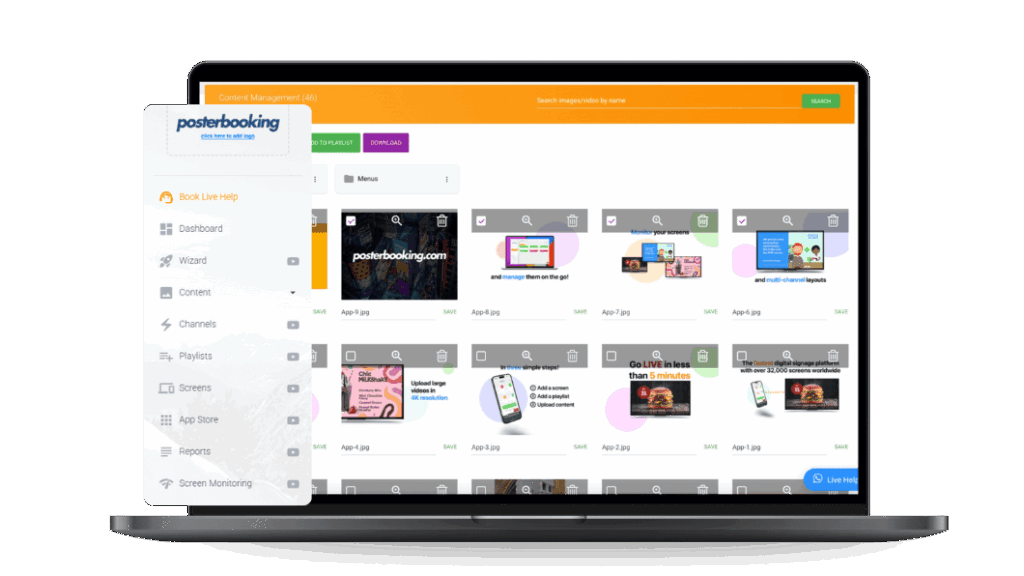
- Go to the Content section in the PosterBooking dashboard
- Click Images / Videos
- Upload the QR code image file you downloaded earlier
- Once uploaded, the file will appear in your content library
Tip: You can also combine the QR code with other branding by designing a poster in Canva or Figma and including the QR code as part of that design. Then export it as a single image.
Step 5: Create a Playlist Featuring the QR Code
- Go to the Playlists section
- Click Create Playlist and give it a name like “QR Campaign”
- Click Add Content
- Select the QR code image
- Set a duration (for example, 30 seconds)
- Click Save
You can add other images or videos if you want to rotate content, or display the QR code continuously as a single item.
Step 6: Assign the Playlist to Your Android Screen
- Go to the Screens section
- Click Add or Edit Playlist next to your connected screen
- Select your “QR Campaign” playlist
- Click Save
Your screen will now begin displaying the QR code immediately. Anyone can scan the code directly from their phone and access the link you provided.
Best Practices for QR Code Signage
- Display time: Give each QR code at least 15 to 30 seconds if rotating with other content
- Size: Make sure the QR code is large enough for viewers to scan from a few feet away
- Positioning: Place the code in the center or bottom third of the screen
- Test it: Scan it yourself on screen before going live to ensure it works
Why Use PosterBooking for QR Code Signage?
PosterBooking makes it incredibly easy to:
- Display static or rotating QR codes
- Manage content remotely from any device
- Upload unlimited media, even on the free plan
- Use Android TVs or tablets without special hardware
- Schedule QR campaigns across multiple screens
With PosterBooking’s free plan, you can connect up to 10 screens, upload unlimited content, and update displays in real time - all without contracts or technical setup.
Final Thoughts
Displaying QR codes on digital signage is one of the simplest ways to drive engagement from your physical space to your digital platforms. And with PosterBooking on your Android signage, you can make it happen in minutes.
Whether you’re sharing a link to a menu, event registration, contact form, or a limited-time offer, PosterBooking gives you the tools to display it clearly, dynamically, and for free.
Get started today by visiting posterbooking.com and turning your Android screen into a live QR campaign.
Join PosterBooking and START today!
Frequently Asked Questions
How do I show a QR code on my Android digital signage?
You can display a QR code by downloading it as a PNG or JPG file and uploading it to the Images/Videos section of the PosterBooking dashboard. Once uploaded, add the image to a playlist and assign that playlist to your connected Android screen.
How much does PosterBooking cost for digital signage?
PosterBooking is free for up to 10 screens, though a watermark will appear on these screens after a 3 month trial period. If you need 11 or more screens, the cost starts at $6.49 per screen per month.
What devices can I use to run PosterBooking on my TV?
The software works on various devices including Fire TV Stick, Android TV, Amazon Signage Stick, Chromebox, Windows, and Raspberry Pi. You simply need to download the app from the Google Play Store or your device app store to get a connection code.
Does PosterBooking work without an internet connection?
Yes, PosterBooking supports offline playback through caching. This means your content will continue to play on the screen even if the internet connection is lost.
How long should a QR code stay on the screen for people to scan it?
It is recommended to display the QR code for at least 15 to 30 seconds if you are rotating it with other content. This ensures viewers have enough time to pull out their phones and scan the code successfully.
Join PosterBooking for FREE
Get a free 1:1 PosterBooking demo and see how to unlock 10 free screens with zero setup headaches.