
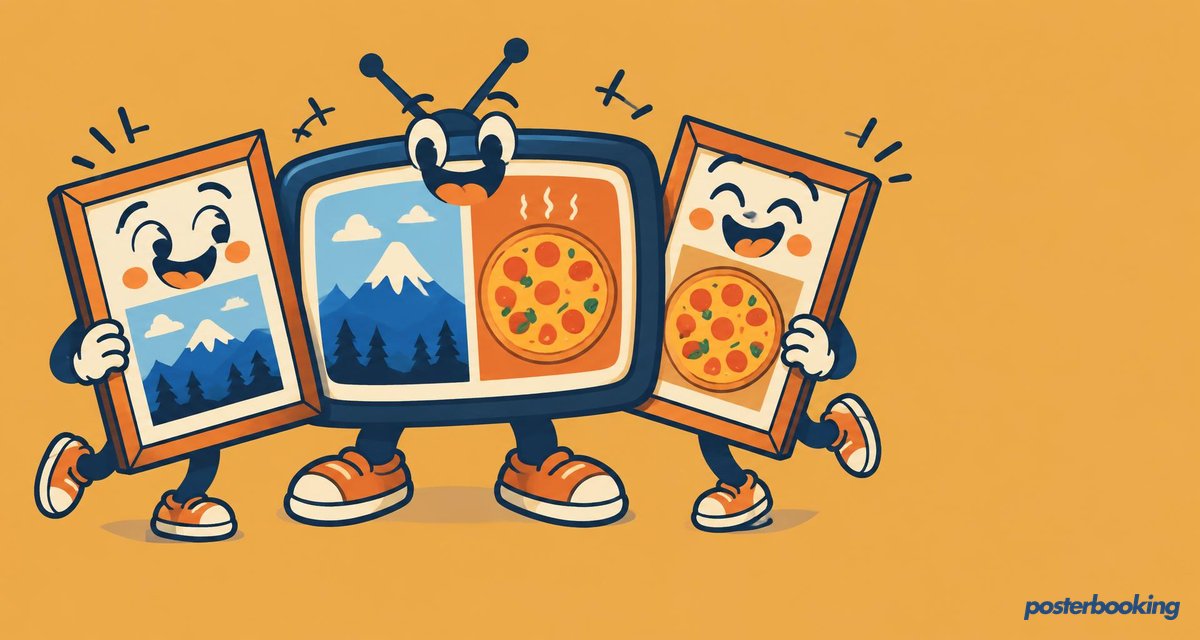
PosterBooking is a digital signage app that lets you display virtually any content on any screen. This screen can either be a smart screen or a regular one with a Fire Stick attached, as the PosterBooking app must be installed. In this guide, we’ll show you how to use the channels feature to display two images side-by-side or stacked vertically on a single screen.
Table Of Contents
- Step 1: Connect Your Screen
- Step 2: Upload Your Images
- Step 3: Create Playlists
- Step 4: Set Up a Channel with a Split Layout
- Step 5: Assign the Channel to Your Screen
- Final Thoughts
- Frequently Asked Questions
- How do I show two images on one screen with PosterBooking?
- What devices can I use to run PosterBooking digital signage?
- Can I split my digital signage screen vertically or horizontally?
- Is PosterBooking free to use?
- How long does it take to set up PosterBooking?
Step 1: Connect Your Screen
- Open the PosterBooking app on your device.
- Navigate to Add Screen and tap Add Screen again.
- On your first setup, the app will display a unique code.
- Enter the code, assign a name to your screen, and select Add Screen.
- Your screen is now connected.
Example: You might name your screen “Office Display” or “Event Board.”
Step 2: Upload Your Images
- Go to the Content section and choose Images/Videos.
- Upload the two images you want to display.
- Ensure the aspect ratios of both images are considered:
- If displayed vertically, split the screen in half.
- For side-by-side images, ensure both images have equal width proportions.
Pro Tip: Use an image editor to resize your images before uploading for a seamless fit.
Step 3: Create Playlists
- Go to Playlists and create two separate playlists:
- Playlist One for your first image.
- Playlist Two for your second image.
- Add your content to each playlist:
- For Playlist One, add the first image.
- For Playlist Two, add the second image.
- Double-check the playlists to ensure no extra content is added by mistake.
Step 4: Set Up a Channel with a Split Layout
- Navigate to the Channels section and create a new channel:
- Name the channel something descriptive, such as “Two Images.”
- Choose a Split Layout:
- Vertically Split for side-by-side images.
- Horizontally Split for stacked images.
- Assign playlists to each section:
- For the left bar (or top bar), select Playlist One.
- For the right bar (or bottom bar), select Playlist Two.
- Save the channel.
Step 5: Assign the Channel to Your Screen
- Go back to the Screens section and locate your connected screen.
- Tap the plus (+) button under the screen to edit its channels.
- Select your newly created channel (e.g., “Two Images”) and hit Save.
- Your screen will now display both images simultaneously, based on your chosen layout.
Final Thoughts
With these steps, you can leverage the PosterBooking channels feature to create a visually appealing split-screen display. Whether for events, advertisements, or presentations, this setup ensures a professional and dynamic visual experience.
Stay tuned for more helpful guides to maximize your digital signage!
Frequently Asked Questions
How do I show two images on one screen with PosterBooking?
You can display two images at once by using the channels feature to select a split layout. After creating two separate playlists for your images, you assign one to each section of the layout to show them side by side or stacked.
What devices can I use to run PosterBooking digital signage?
PosterBooking is compatible with Fire TV Stick, Amazon Signage Stick, Android TV, Chromebox, Windows, and Raspberry Pi. The app must be installed on your device to connect it to the system.
Can I split my digital signage screen vertically or horizontally?
You must create two separate playlists and assign them to a channel with a split layout. Choose the vertically split layout for side by side images or the horizontally split layout for stacked images.
Is PosterBooking free to use?
PosterBooking is free for up to 10 screens, though a watermark will appear after a 3 month trial period. If you need more than 10 screens, the cost starts at $6.49 per screen per month.
How long does it take to set up PosterBooking?
The setup process is very fast and typically takes about 2 minutes to complete. This includes connecting your screen by entering a unique code and assigning your content.