Table Of Contents
Managing digital signage across multiple screens used to be complicated. But in 2025, platforms like PosterBooking have made it incredibly easy, especially if you’re using Android devices like smart TVs, Fire Sticks, or Android TV boxes. Whether you’re running a café, retail store, school, or office, PosterBooking allows you to schedule content remotely from anywhere.
This step-by-step guide will show you exactly how to schedule content remotely on Android screens using PosterBooking, the best free digital signage software available today.
Why Scheduling Matters
Content scheduling lets you control what plays on each screen at different times of day or days of the week. For example:
- Cafés can show a breakfast menu in the morning, lunch items by noon, and promotions in the evening
- Retail stores can display different sales based on the time of day
- Offices can show meeting room availability or employee notices based on business hours
With PosterBooking, you can schedule all of this remotely without touching the screen.
Step 1: Connect Your Android Screen to PosterBooking
Before you can schedule anything, your Android screen must be connected to the PosterBooking platform.
- Install the PosterBooking app from the Google Play Store on your Android TV or media player
- Launch the app and a unique screen code will appear
- On your computer or mobile browser, go to posterbooking.co.uk/register?package=free
- Log into your free account (or create one)
- Click Add Screen, enter the code, name your screen, and click Add Screen again
Your screen is now active and ready to receive scheduled content.
Step 2: Upload Your Content
Now upload the media you want to schedule.
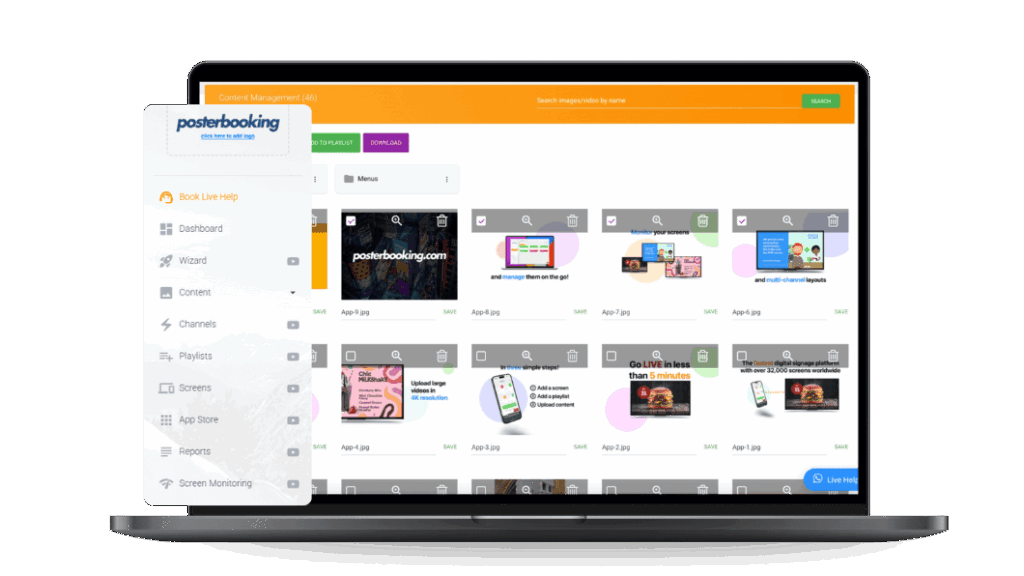
- From your PosterBooking dashboard, click on Content
- Select Images/Videos and upload JPGs, PNGs, or MP4 files
- You can also add Websites or Google Slides via URL if you want to show live content
All uploaded content will be stored in your content library and can be reused across multiple playlists.
Step 3: Create Multiple Playlists
To schedule content, you need to create separate playlists for different time blocks.
- Go to the Playlists section
- Click Create Playlist and give it a name (e.g. Morning Menu, Afternoon Promo)
- Click Add Content and choose the media you want included
- Repeat this process for every time slot you plan to schedule
You can add multiple items per playlist and set display durations for each item
Step 4: Set Up a Content Schedule
Once your playlists are ready, set a schedule for when each one should play.
- Go to the Screens section
- Find the screen you want to schedule content for
- Click Add/Edit Schedule
- Use the interface to assign specific playlists to time slots on specific days
- For example:
- Monday to Friday, 7:00 AM - 11:00 AM: Morning Menu
- Monday to Friday, 11:00 AM - 4:00 PM: Lunch Specials
- Weekends: Promotions or branded content
- Click Save Schedule when you’re done
Your Android screen will now follow this exact schedule and update content automatically throughout the day.
Step 5: Monitor and Adjust Remotely
PosterBooking gives you full control over your screens, even when you are not physically near them.
You can:
- View what is currently playing
- Make last-minute changes to playlists or schedules
- Add or remove content instantly
- Reboot screens remotely if needed
All of this can be done from your dashboard via computer or mobile device.
Why PosterBooking Is the Best Tool for Remote Scheduling in 2025
PosterBooking makes content scheduling simple and reliable, especially on Android screens. Whether you’re managing one screen or dozens across multiple locations, you can keep every display up-to-date from anywhere.
Benefits include:
- Free access for up to 10 screens
- Unlimited playlist and content uploads
- Real-time screen updates without physical access
- Drag-and-drop scheduling tools for time-based automation
- Seamless compatibility with Android smart TVs, Fire Sticks, and tablets
For any business that wants control and flexibility without huge monthly software costs, PosterBooking remains the top choice in 2025.
Final Thoughts
Content scheduling is what makes digital signage more than just a looping video. It helps you stay relevant, timely, and professional. With PosterBooking, you can take full control of your Android screens and schedule engaging content days or weeks in advance - all from the comfort of your office or home.
Visit posterbooking.com to create your free account today and start scheduling smarter.
Join PosterBooking and get 10 screens free for 3 months!
Frequently Asked Questions
How do I schedule content to change at different times of the day on my Android screen?
You can schedule content by creating different playlists for specific time blocks and assigning them to your screen in the Screens section of the dashboard. This allows you to set specific start and end times for content like morning menus or afternoon promotions on specific days.
Is PosterBooking actually free to use for my business?
PosterBooking is free for up to 10 screens, though these screens will show a watermark after an initial 3 month trial period. For setups requiring more displays, the service costs $6.49 per screen per month starting from the 11th screen.
What devices can I use to run this digital signage software?
The platform is compatible with Fire TV Sticks, Amazon Signage Sticks, Android TV, Chromebox, Windows, and Raspberry Pi. You simply need to install the app from the Google Play Store on your chosen Android device to get started.
Will my digital signage stop working if the internet goes down?
Yes, your screens will continue to show content because PosterBooking supports offline playback via caching. This ensures your scheduled media keeps running even if the internet connection is temporarily lost.
Can I update my screens from home if they are located at my shop?
You can manage everything remotely by logging into your dashboard from any computer or mobile browser. This allows you to view what is currently playing, make last minute playlist changes, or reboot screens without being physically near them.
Join PosterBooking for FREE
Get a free 1:1 PosterBooking demo and see how to unlock 10 free screens with zero setup headaches.