
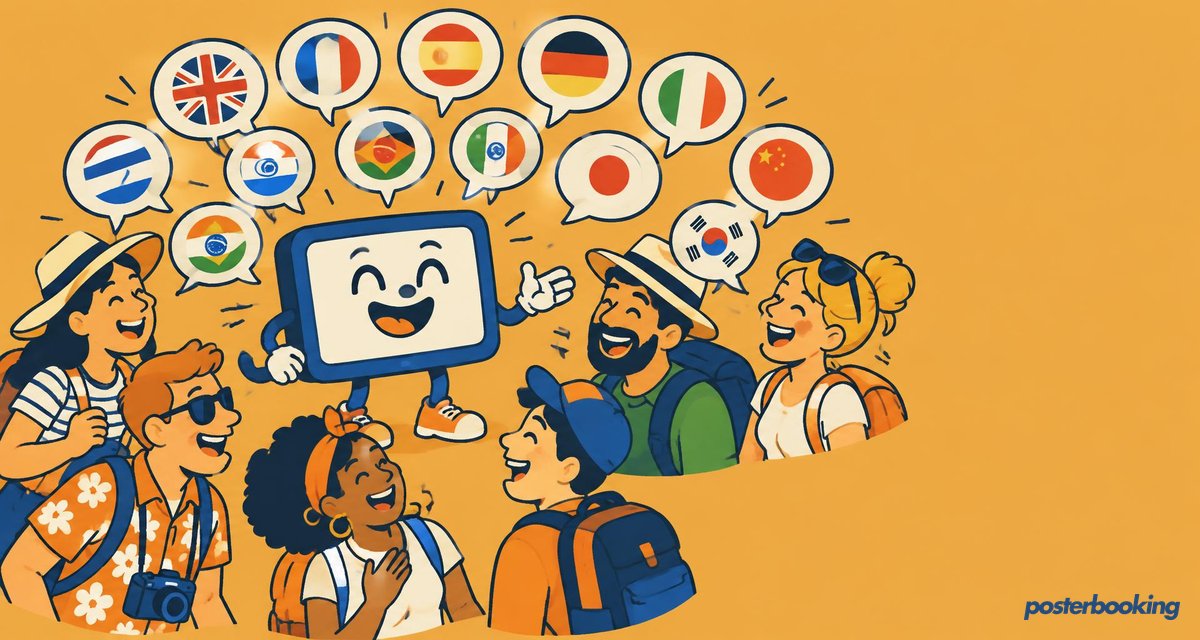
As businesses expand across regions and cater to diverse audiences, the need to communicate in multiple languages has become essential. Whether you are a retailer serving international customers, a university welcoming global students, or a healthcare facility assisting multicultural patients, delivering content in multiple languages through digital signage enhances communication and customer experience.
With PosterBooking, you can create and manage multilingual content on your digital signage screens. This guide walks you through how to set up multilingual support using playlists, scheduling, and screen management features within PosterBooking.
Table Of Contents
- Why Multilingual Digital Signage Matters
- Step 1: Connect Your Screens to PosterBooking
- Step 2: Prepare Content in Multiple Languages
- Step 3: Upload Language-Specific Content to PosterBooking
- Step 4: Create a Playlist for Each Language
- Step 5: Assign Language Playlists to Screens or Time Slots
- Option A: Assign a Different Language Playlist to Each Screen
- Option B: Schedule Different Languages by Time of Day
- Step 6: Monitor and Adjust Content as Needed
- Why PosterBooking is Ideal for Multilingual Digital Signage
- Final Thoughts
- Frequently Asked Questions
- How do I set up multilingual support on my digital signage?
- Is PosterBooking free to use?
- What devices does PosterBooking work on?
- Can PosterBooking play content offline?
- How can I show multiple languages on a single screen?
Why Multilingual Digital Signage Matters
Multilingual digital signage helps businesses:
- Reach and serve customers in their preferred language
- Improve accessibility and inclusion
- Comply with regional language policies
- Boost engagement by speaking directly to diverse audiences
For example, a hotel in a tourist city may display welcome messages in English, Spanish, and French. A university may provide updates in both English and Arabic.
PosterBooking makes this possible by allowing users to create different playlists in different languages, then assign them based on location, schedule, or screen setup.
Create an Account Today and Get 10 screens free for 3 months!
Step 1: Connect Your Screens to PosterBooking
Before creating multilingual content, make sure your digital signage screens are connected.
- Open the PosterBooking app on your screen or media device such as a Fire Stick or Android box.
- A screen code will appear
- On your browser, go to the PosterBooking dashboard and log in
- Click Add Screen, enter the code, and assign a name to your screen
- Repeat this process for each screen you plan to use
Once your screens are connected, you can move on to content creation.
Step 2: Prepare Content in Multiple Languages
Create your media content in the languages you want to support. You can use tools like Canva, Photoshop, or video editors to design:
- Promotional banners
- Informational posters
- Safety instructions
- Menu boards
- Event schedules
Make sure to save each version of your content separately. For example:
- Menu English.jpg
- Menu French.jpg
- Menu Spanish.jpg
Step 3: Upload Language-Specific Content to PosterBooking
- Go to the Content section in your PosterBooking dashboard
- Click Images and Videos
- Upload all language versions of your content
- Organize them using folders such as English Content, French Content, and Spanish Content
Keeping content organized by language makes it easier to assign to the correct playlist or screen later.
Step 4: Create a Playlist for Each Language
- Navigate to the Playlists tab
- Click Create Playlist and name it according to the language, such as English Display or Spanish Feed
- Click Add Content and select the relevant images or videos for that language
- Repeat this process for each language version you want to display
Each playlist now contains only content in a specific language.
Don’t Miss Out! Get Access to PosterBooking Now!
Step 5: Assign Language Playlists to Screens or Time Slots
Option A: Assign a Different Language Playlist to Each Screen
This is ideal for locations where certain areas have a dominant language
- Go to Screens in your dashboard
- Select the screen you want to assign
- Click Add or Edit Playlist
- Choose the language-specific playlist and click Save
Example: Assign an Arabic playlist to a screen in an international student office and a French playlist to a screen in a French-speaking zone.
Option B: Schedule Different Languages by Time of Day
If you want a single screen to rotate between languages during the day
- Create a single playlist that includes multiple language content
- Use the Scheduler to set each media item to appear at specific times
- English slides from 8 AM to 12 PM
- Spanish slides from 12 PM to 4 PM
- French slides from 4 PM to 8 PM
- Go to the screen and assign this rotating playlist
This method is useful in high-traffic areas where your audience changes throughout the day.
Step 6: Monitor and Adjust Content as Needed
PosterBooking’s dashboard allows you to:
- Preview content before it appears on screen
- Switch playlists quickly if needed
- Update content remotely without needing to access the screen physically
- Add new language support anytime by repeating the steps above
Why PosterBooking is Ideal for Multilingual Digital Signage
PosterBooking is a free, cloud-based digital signage platform that supports:
- Unlimited playlists for each language
- Multiple screen management from one dashboard
- Remote scheduling and real-time updates
- Flexible content rotation based on time, region, or user preferences
- No hidden fees or contracts
It is the easiest way for businesses and organizations to scale their digital signage across multilingual environments.
Final Thoughts
Creating a multilingual digital signage setup is essential for businesses that serve diverse communities and international audiences. With PosterBooking, you can create language-specific content, organize it by playlist, and display it strategically across your screens (maximum of 10), all for free.
Sign up at PosterBooking.com and make your digital signage accessible, inclusive, and ready for global engagement.
Frequently Asked Questions
How do I set up multilingual support on my digital signage?
You can create separate playlists for each language and assign them to specific screens or use the scheduler to rotate languages on a single screen. First, upload your translated images or videos to the content section, then organize them into playlists like English Feed or Spanish Feed. Finally, select your screen in the dashboard and add the appropriate language playlist.
Is PosterBooking free to use?
PosterBooking is free for up to 10 screens, though a watermark appears after a 3 month trial period on the free version. If you need more than 10 screens, the cost is $6.49 per screen per month. There are also flat rate options like Home Basic at $52 per month for 10 screens without watermarks.
What devices does PosterBooking work on?
PosterBooking supports a wide variety of hardware including Fire TV Stick, Amazon Signage Stick, and Android TV devices. You can also run the software on Chromebox, Windows computers, and Raspberry Pi. The setup process for these devices typically takes about 2 minutes.
Can PosterBooking play content offline?
Yes, the software supports offline playback through a caching system. This ensures your multilingual content continues to display even if the internet connection is interrupted. The system will store the media locally on your device for consistent performance.
How can I show multiple languages on a single screen?
You should use the scheduler to set specific time slots for each language, such as English slides in the morning and Spanish slides in the afternoon. Alternatively, you can create a single playlist that includes content in multiple languages to have them rotate continuously. Both methods allow you to reach a diverse audience using just one display.