You upload templates in digital signage by logging into your CMS dashboard, choosing the content or template upload option, importing your pre-designed file (from Canva, Photoshop, or PowerPoint), and assigning it to a playlist that plays on your screens. Templates act as ready-made layouts for menus, announcements, or promotions, and uploading them is as simple/ as uploading images or videos.
Here’s a step-by-step breakdown.
Table Of Contents
Step 1: Prepare Your Requirements

Before uploading, make sure you have:
- A designed template in JPG, PNG, or MP4 format (depending on whether it’s static or animated).
- Access to your digital signage CMS dashboard (for example, PosterBooking).
- A clear naming system so you can organize multiple templates later.
Pro tip: Always design templates in the exact resolution of your screen. Most signage screens are 1920×1080 (Full HD) or 3840×2160 (4K).
Step 2: Log In to Your Digital Signage Dashboard
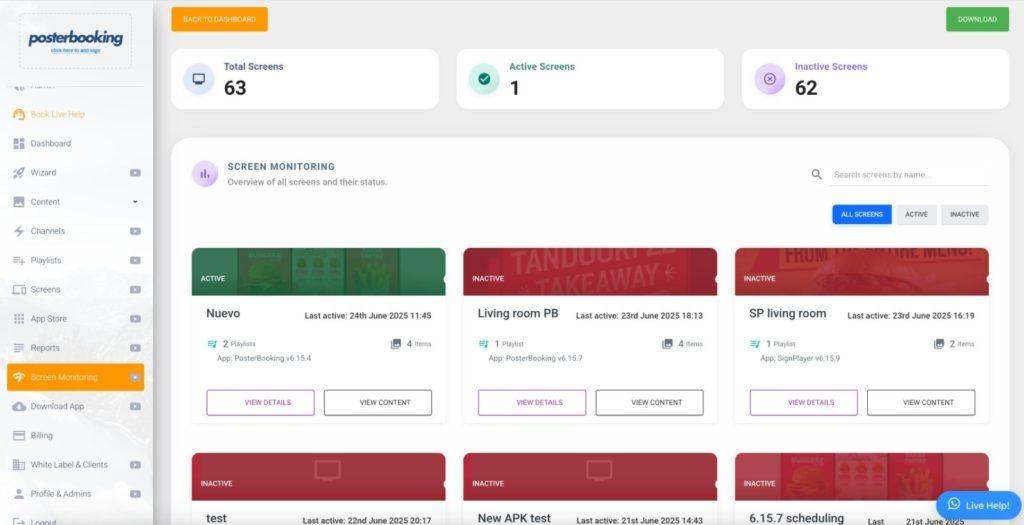
- Open your signage platform (PosterBooking dashboard in this example).
- Log in with your account credentials.
- From the sidebar, click Content → Images/Videos.
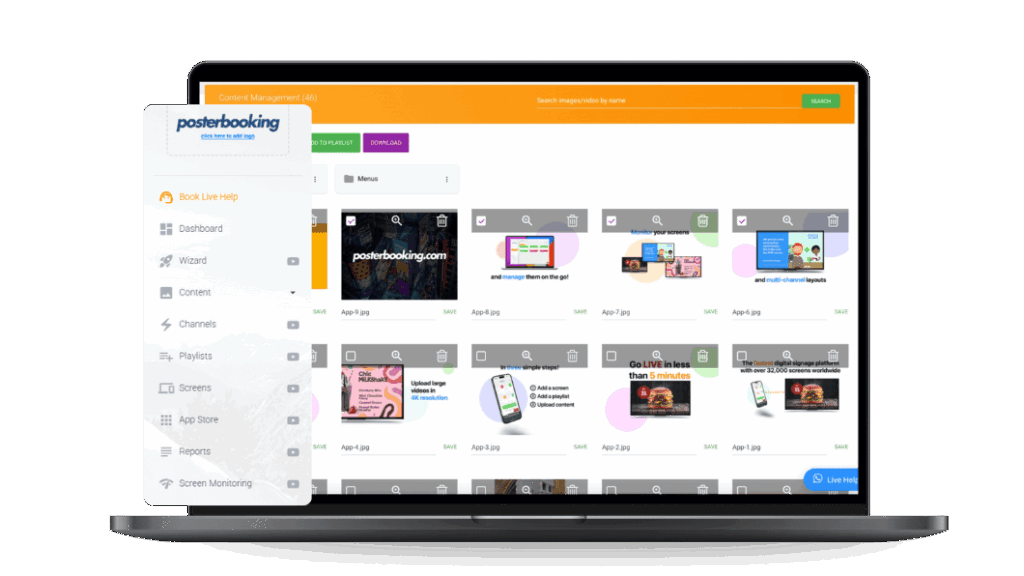
This is the central library where all uploaded files are stored.
Step 3: Upload Your Template File
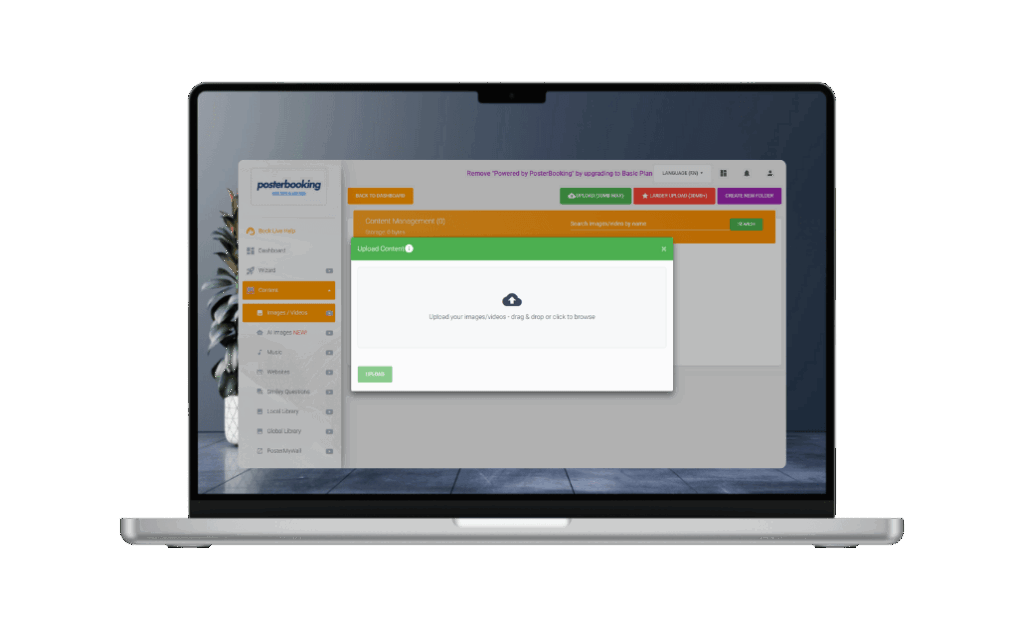
The steps to upload a template are:
- Click Upload in the content section.
- Select your template file (JPG, PNG for static designs, MP4 for video templates).
- Wait for the upload to complete - larger video templates may take longer.
- Once uploaded, the file will appear in your media library.
Clarification: Templates are just like regular media files. Once uploaded, they can be reused across playlists, duplicated, or scheduled for different times.
Step 4: Add Templates to a Playlist
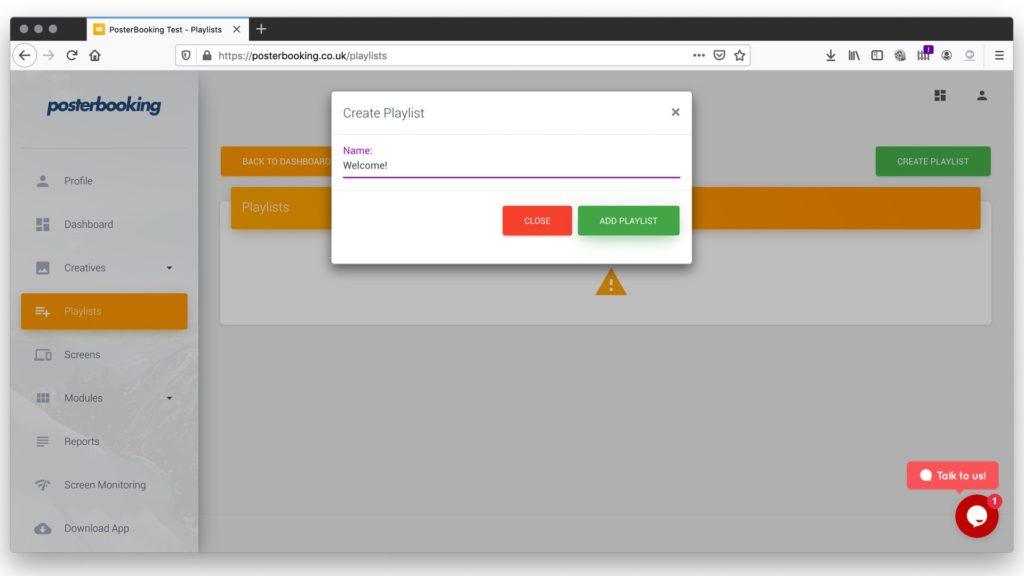
Uploading alone doesn’t display the template - you must add it to a playlist.
- Navigate to Playlists in the dashboard.
- Create a new playlist (e.g., Restaurant Lunch Menu).
- Click Add Content and select the uploaded template.
- Save the playlist.
Step 5: Assign the Playlist to a Screen
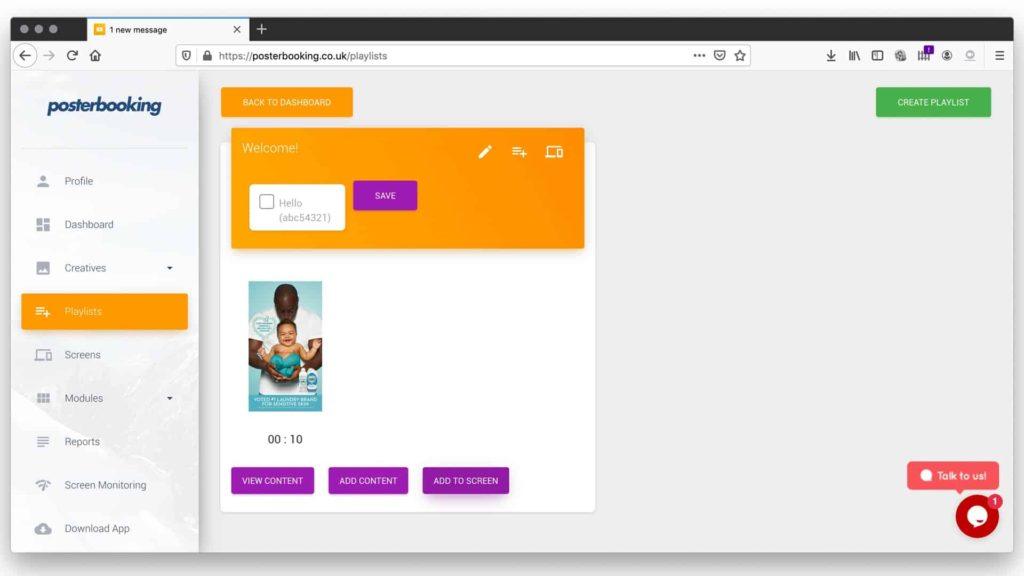
To make your template visible on your signage display:
- Go to the Screens section.
- Select the screen you want to update.
- Click Add/Edit Playlist.
- Choose the playlist that contains your uploaded template.
- Save changes.
Your template will now appear on the screen within seconds.
Best Practices for Uploading Templates
- Optimize file sizes: Keep templates under 10 MB for images and 500 MB for videos to avoid lag.
- Keep text minimal: Viewers only look at screens for 5-7 seconds, so your template should use short, bold text.
- Use consistent branding: Add your logo and colors to every template for professional consistency.
- Test visibility: Stand 6-10 feet away from the screen to make sure the template is readable.
Example Use Cases
- A café uploads a Canva-designed template for its Daily Specials, saving it as a JPG and assigning it to the morning playlist.
- A school uploads a template for Weekly Announcements, saved as a PowerPoint-to-MP4 video.
- A retail store uses a pre-designed promotional flyer template as part of a slideshow playlist.
Final Thoughts
You upload templates in digital signage the same way you upload any media file - by logging into your CMS, uploading the design file, and assigning it to a playlist. Once displayed on your screens, templates make it easy to maintain consistency across promotions, menus, and announcements.
In 2025, PosterBooking remains the best free digital signage platform for this process. It supports 10 free screens, unlimited uploads, and easy playlist scheduling, making it perfect for uploading and displaying templates without limits.
Join PosterBooking and START today!
Frequently Asked Questions
How do I upload a template to my digital signage software?
You upload templates by logging into your CMS dashboard, selecting the content upload option, and importing your JPG, PNG, or MP4 file. The process is similar to uploading standard images or videos and takes about two minutes to set up. Once uploaded, you add the template to a playlist and assign it to a specific screen.
Can I upload templates from Canva or Photoshop to my digital signage?
Yes, you can use templates created in Canva, Photoshop, or PowerPoint by saving them as supported image or video files before uploading. Ensure the files are designed in the correct resolution for your screen, such as 1920x1080 for Full HD or 3840x2160 for 4K. Keeping image sizes under 10 MB and videos under 500 MB helps avoid performance lag.
Is there a free way to upload and display templates on digital signage?
PosterBooking is a free digital signage platform that supports up to 10 screens without a monthly fee. While the first 10 screens are free, they will show a watermark after an initial three month trial period. For setups without watermarks, the Home Basic plan costs $52 per month for 10 screens.
What hardware do I need to run digital signage templates?
PosterBooking is compatible with Fire TV Stick, Amazon Signage Stick or Display, Android TV, Chromebox, Windows, and Raspberry Pi. The system supports offline playback via caching so your templates continue to show even if the internet connection is lost. This flexibility allows you to run templates on almost any common hardware.
How do I make an uploaded template show up on my TV screen?
After uploading your template to the media library, you must navigate to the Playlists section to create a new playlist and add your content. Finally, go to the Screens section, select your target display, and choose the playlist you just created to make it go live. The template should appear on your screen within seconds of saving these changes.
Join PosterBooking for FREE
Get a free 1:1 PosterBooking demo and see how to unlock 10 free screens with zero setup headaches.