
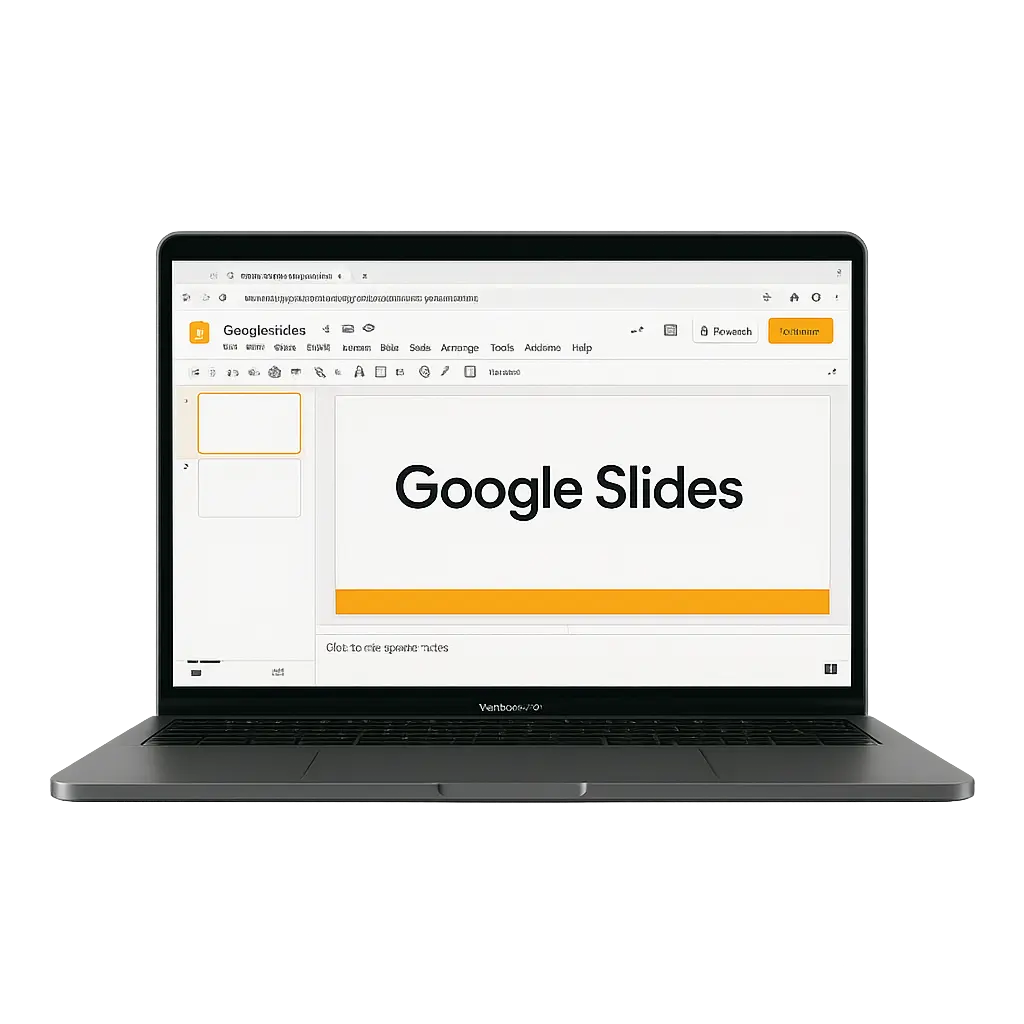
How to Display Google Slides on a TV (Step by Step)
Turn your Google Slides into a live presentation on TVs, digital signage, or menu boards in minutes. No coding, no downloads, just copy, paste, and play
Trusted globally with 120,000 screens and 88,466 users in over 150 countries.
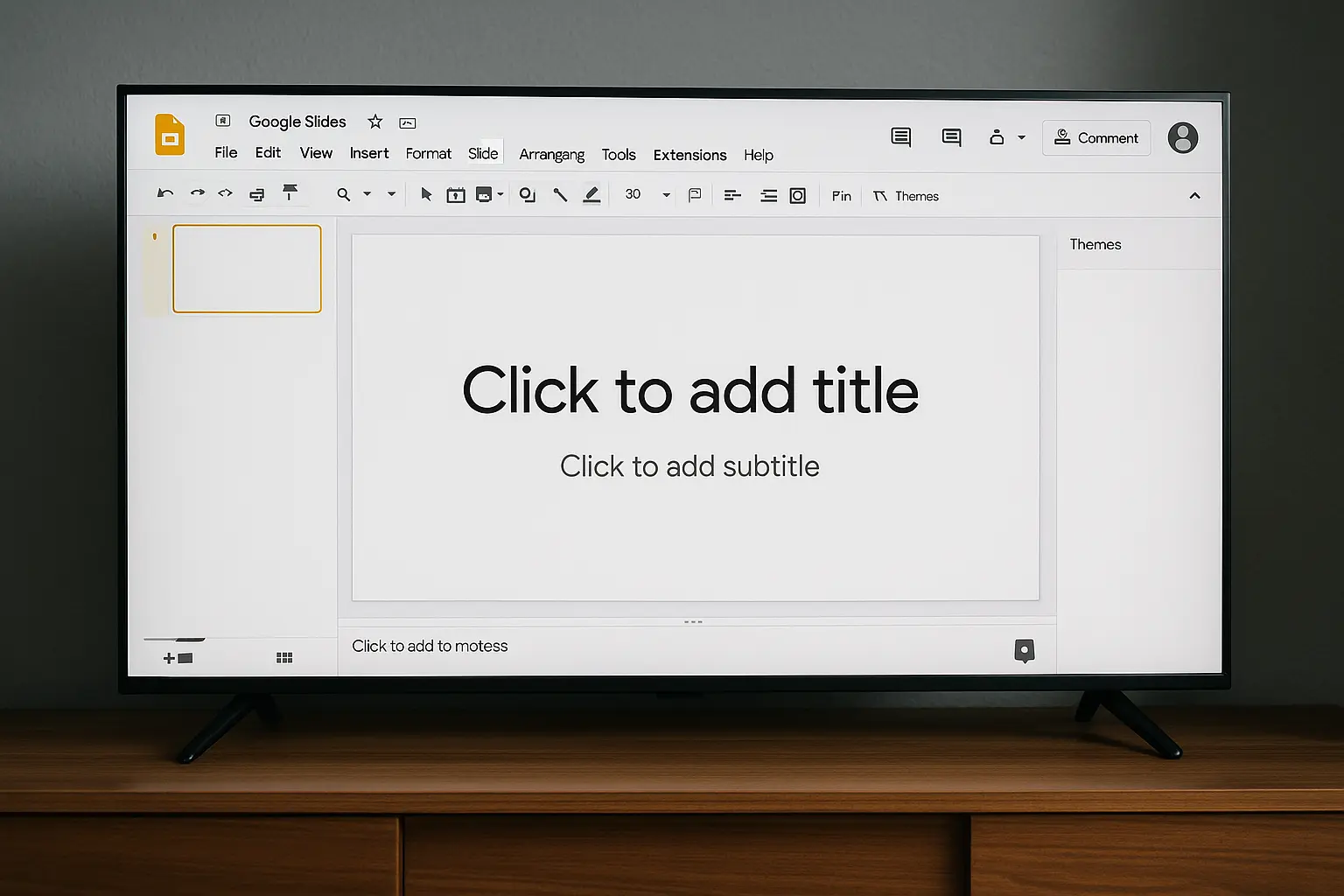






What You’ll Need to Display Google Slides on Any Screen
A TV or digital screen (any size)
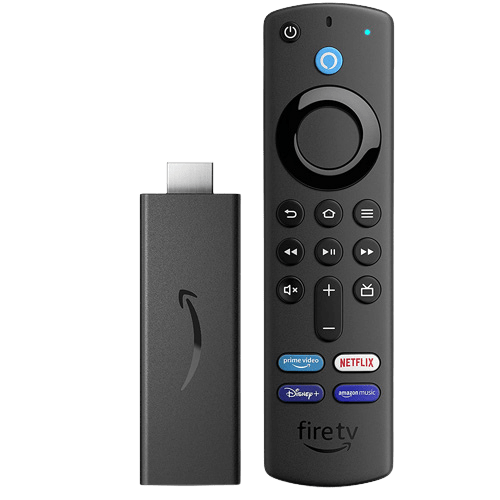
A Media Player
A Free PosterBooking Account
A Google slides URL
Step-by-Step Instructions
Step 1: Make Your Google Slides Public
Let’s start with the basics.
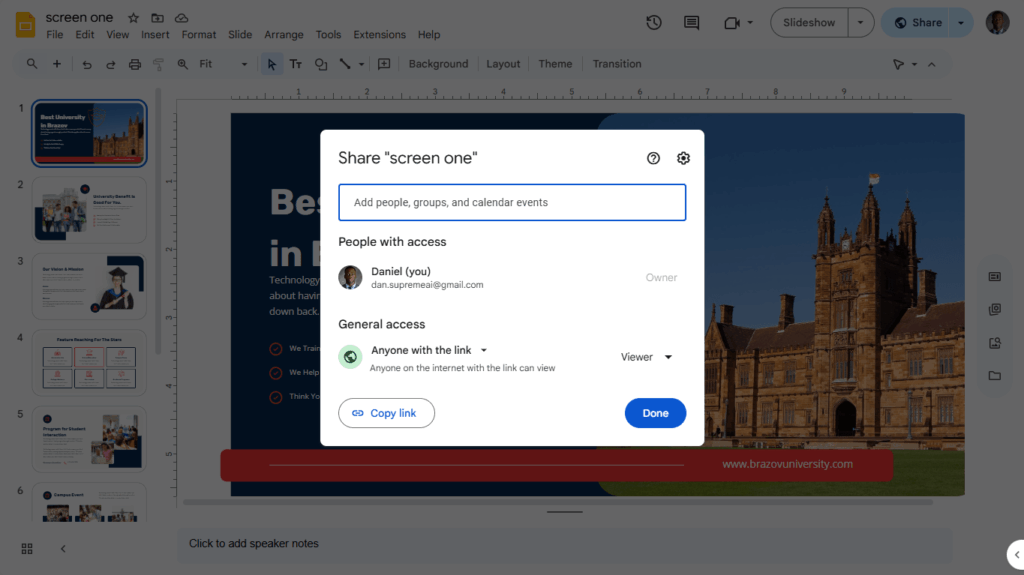
Open your Google Slides presentation. At the top right, click “Share”, and in the popup, change the settings to “Anyone with the link can view.”
Once that’s done, copy the link and we’ll use it in a later step.
Step 2: Install PosterBooking on Your Screen
The next step is to prepare the screen you’ll be displaying the slides on.
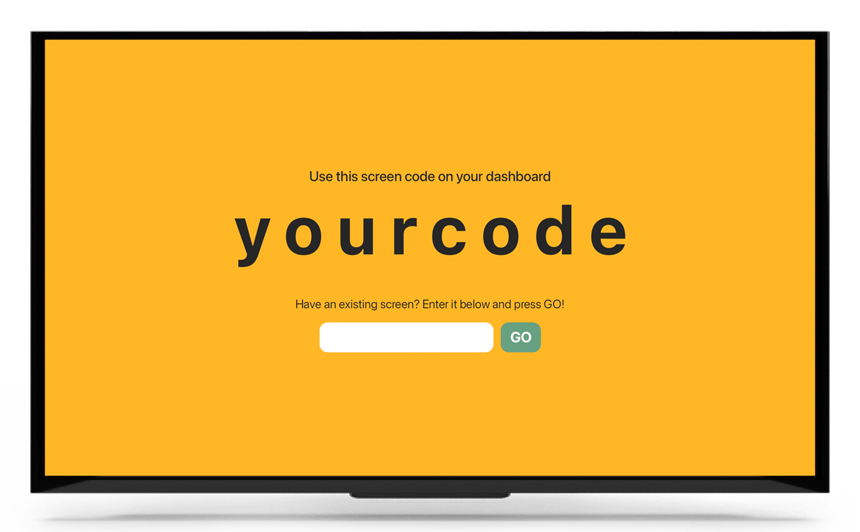
Go to your TV or media player (like Fire Stick, Android TV, or browser device) and download the PosterBooking app.
When you open the app, you’ll see a unique pairing code on the screen, keep it visible.
Step 3: Connect the Screen to Your PosterBooking Account
Now head over to PosterBooking.com on your computer or phone.
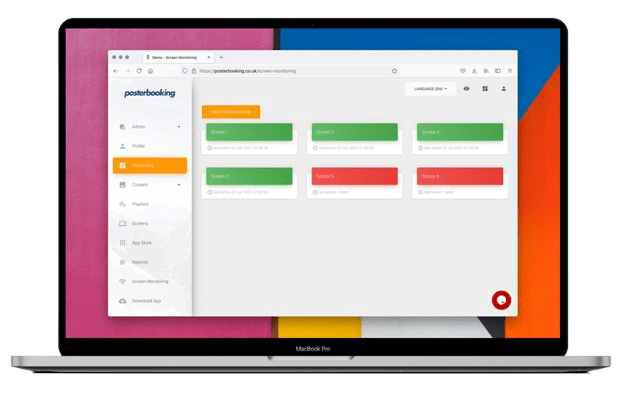
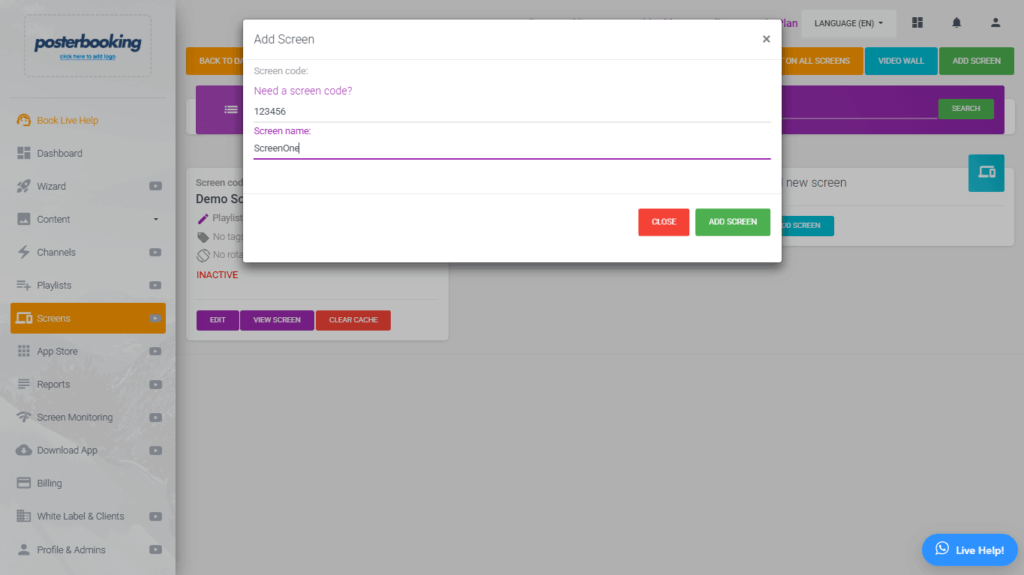
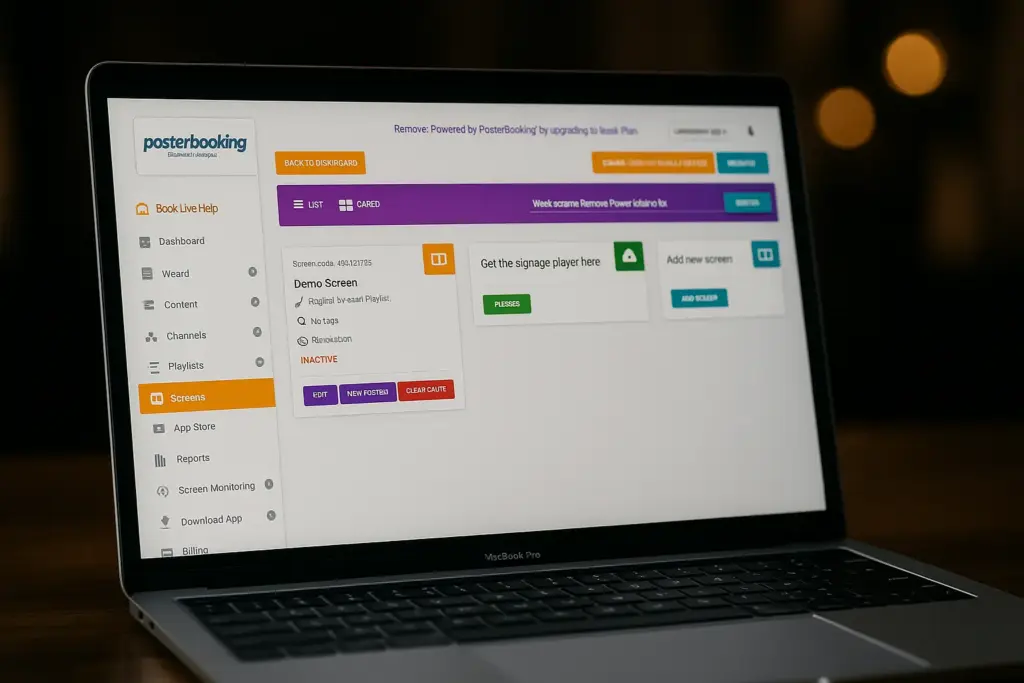
Log in (or sign up for free), then click on “Add Screen.”
You’ll see a field to enter the pairing code that’s currently showing on your TV.
Type in the code, give your screen a name, and hit “Add Screen.”
Just like that, your screen is now linked to your account.
Step 4: Add Your Google Slides as a Website Link
With your screen connected, the next step is to upload your content.
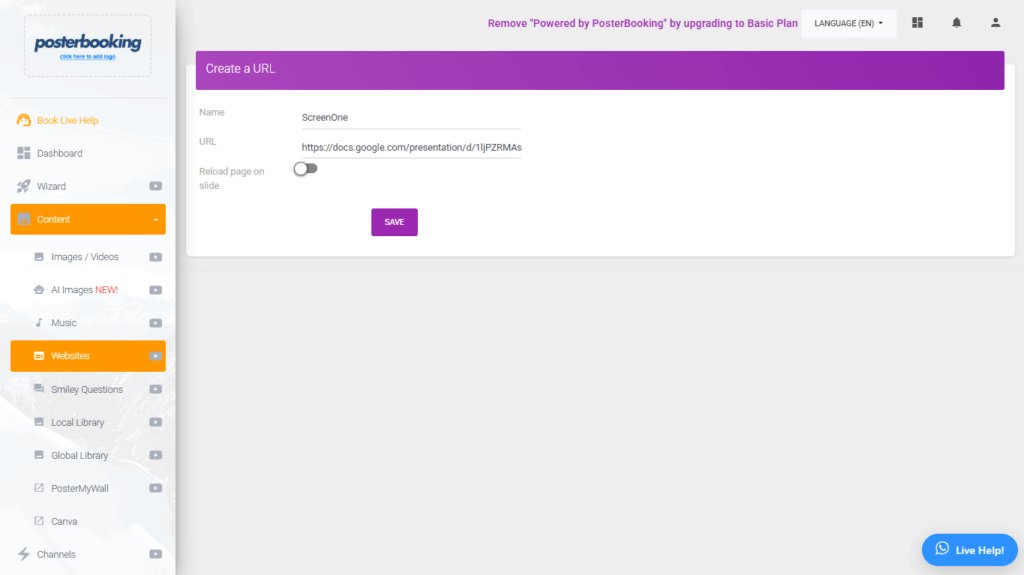
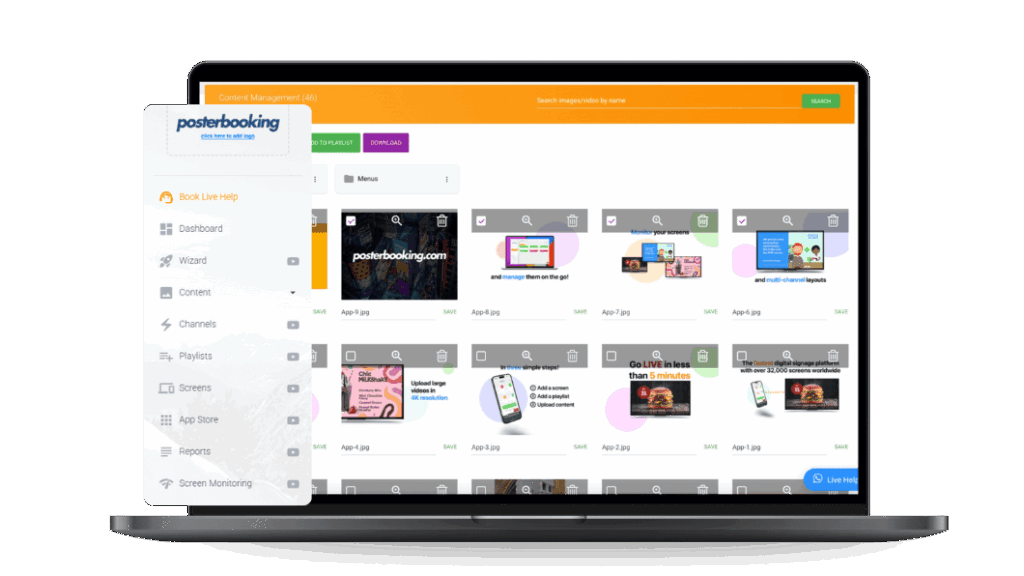
Click on “Content” in the sidebar, then go to “Websites.”
Click “Add Website,” give it a name like “Google Slides,” and paste the link you copied earlier.
Hit “Save.”
Step 5: Create a Playlist
Now let’s organize your content.
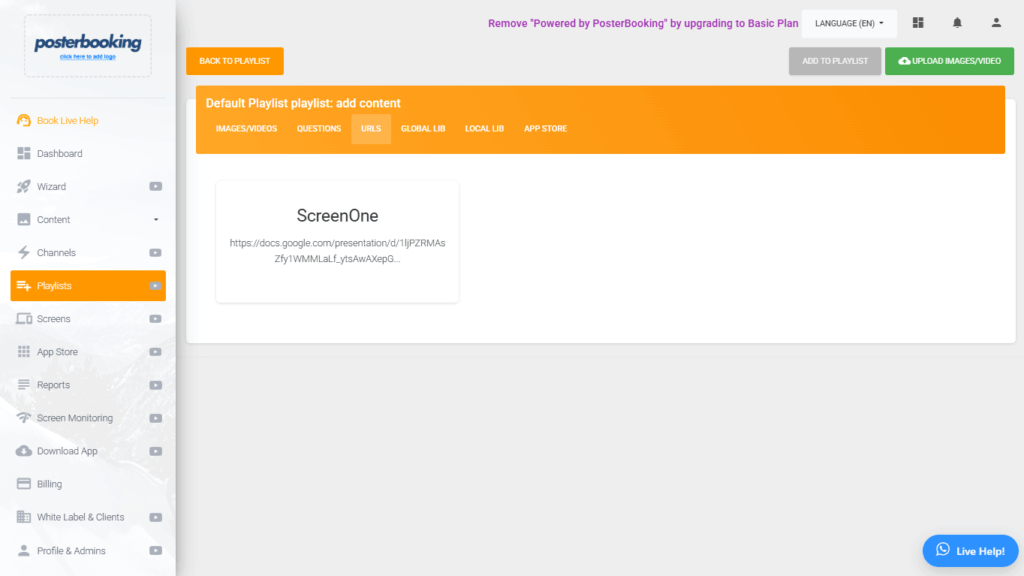
Click on “Playlists,” then click “Add Playlist.”
Name it (e.g., “Lobby Slides”), and after it’s created, click “Add Content.”
Choose “URLs,” select the Google Slides website you added earlier, and click “Add to Playlist.”
Step 6: Assign the Playlist to Your Screen
Finally, let’s display your slides.
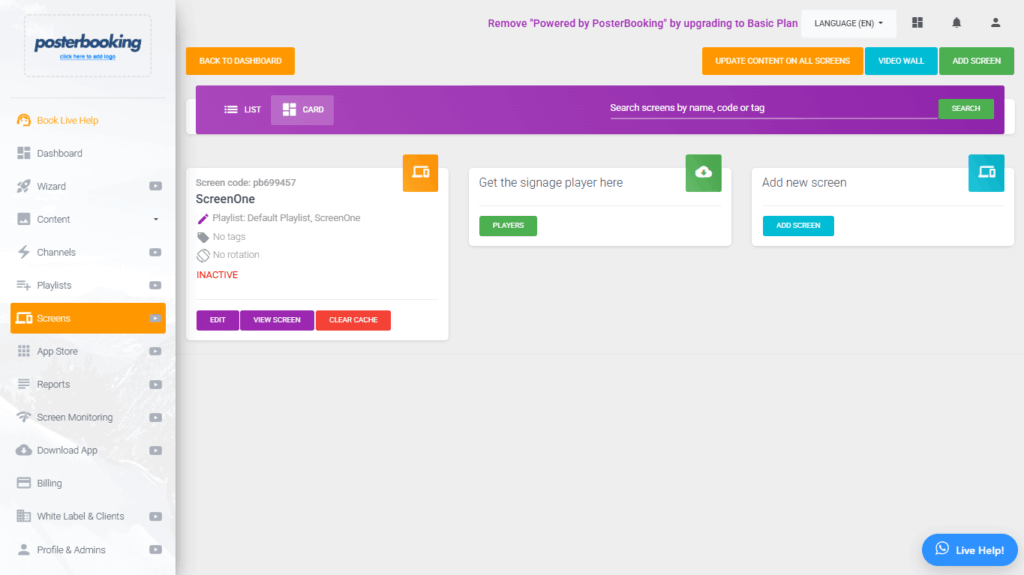
Go back to “Screens,” find the screen you connected earlier, and click the plus (+) button beside it.
Click “Add/Edit Playlist,” select the playlist you just created, and hit “Save.”
Step 7: See Your Google Slides Live on Screen
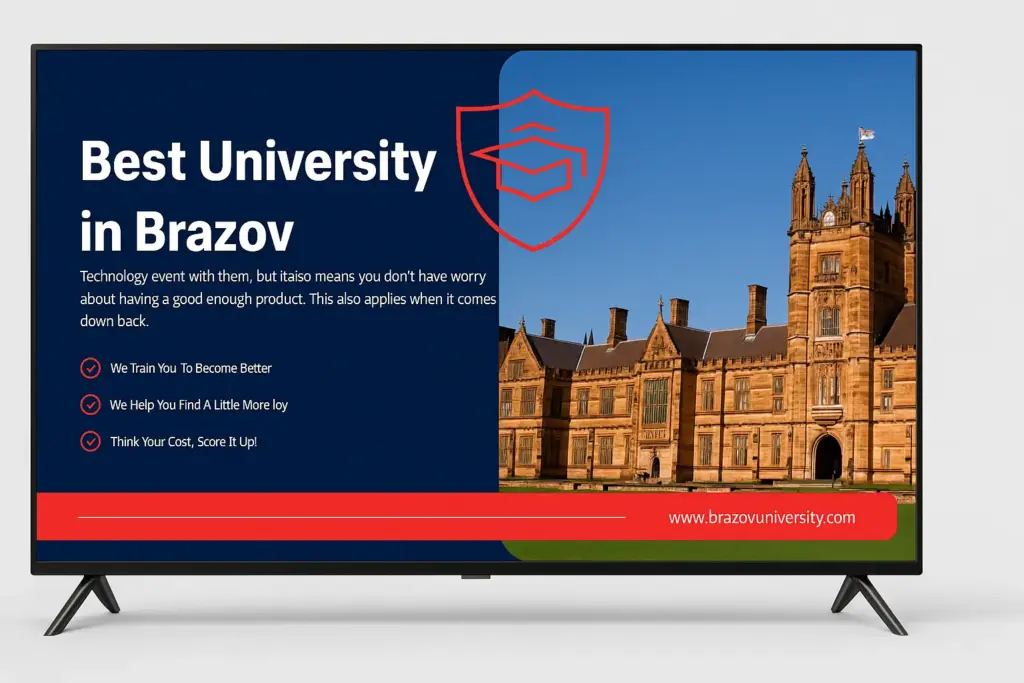
Once the playlist is assigned, your screen will automatically refresh and start displaying your Google Slides presentation, fullscreen, live, and in sync with any edits you make.
Tips for Google Slides on a TV
- Set auto-advance. Your slides loop on the screen automatically, so keep each slide to one short message.
- Use 16:9 slides. This matches almost every TV and avoids black bars.
- Edits go live automatically. Change a slide in Google Slides and the TV updates, no need to touch the screen.
- Mix it with other content. Add videos, images or Canva designs to the same playlist.
Frequently Asked Questions
How do I display Google Slides on a TV?
Make the presentation viewable by anyone with the link, install the PosterBooking app on your TV or streaming stick, add the link as a website in your dashboard, put it in a playlist and assign it to the screen.
Can I play Google Slides on a TV without a computer?
Yes. A Fire TV Stick, Android TV box or smart TV running the PosterBooking app plays the slides on its own, with no computer connected.
Will Google Slides loop on the TV?
Yes. The slideshow plays fullscreen and loops continuously, and it starts again automatically after a power cut.
Can I show Google Slides on a Fire Stick?
Yes. Install PosterBooking from the Amazon Appstore, pair it with your account and assign your Google Slides playlist. See our Fire TV setup guides.
Automate Everything with PosterBooking
Auto-Start Slideshows
Your screen turns on and your slides start playing, even after a power cut. No manual clicks needed.
Schedule Slide Decks by Day or Hour
Show different slides at different times. Breakfast menus in the morning, dinner promos at night.
Control Multiple Screens Remotely
From one dashboard, you can change slides, switch content, or turn off screens from anywhere.
Why Thousands of Businesses Use PosterBooking
Join hotels, restaurants, schools, and offices worldwide who trust PosterBooking to power their screens.
- 10 Free Screens - No Contracts, No Credit Card
- Works on Any Screen You Already Own
- Trusted Globally - 120,000 Screens Globally
- Remote Control from Anywhere
- Schedule Menus by Time of Day
- Sync Across Multiple Locations
Join PosterBooking for FREE
Get a free 1:1 PosterBooking demo and see how to unlock 10 free screens with zero setup headaches.
Display signage live in less than 2 minutes
Seconds to sign up. Seconds to add a screen. Seconds to add content and go live!