
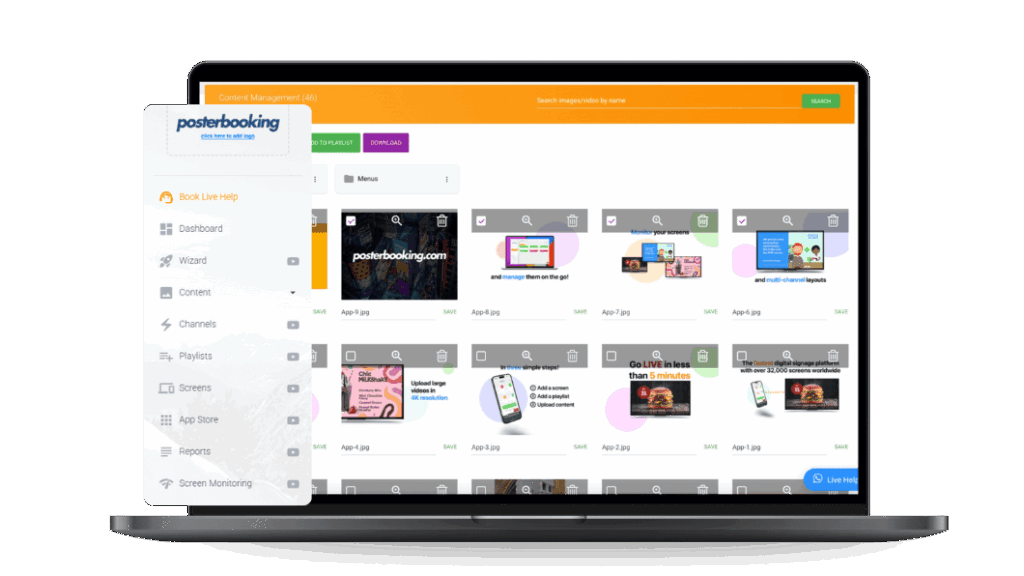
The most useful apps for store screens show promotions, prices, social media, reviews, weather, news and QR codes, all managed from one dashboard. With a digital signage app like PosterBooking you can add these to any TV in your shop and schedule them by time of day, with your first 10 screens free.
Table Of Contents
- What Makes a Store Screen Worth Watching
- Why Stores Use Screen Apps
- Best Apps for Store Screens
- Where to Put Screens in a Store
- How to Set Up Store Screens
- How Much Does Store Digital Signage Cost?
- Mistakes to Avoid
- Content Ideas by Retail Category
- Comparing Store Signage to Printed Point of Sale
- A Real-World Example
- Launch Checklist
- Frequently Asked Questions
What Makes a Store Screen Worth Watching
A screen earns attention the same way a good shop window does: by changing often enough to reward a second look. Shoppers are not browsing a catalogue, they are glancing for a second or two while walking, queuing or trying something on, so the content needs to communicate instantly. Apps do the heavy lifting here, since a weather widget, a social feed or a review carousel updates itself without anyone touching a design tool.
Why Stores Use Screen Apps
Store screens work best when content stays fresh. Apps pull in live content automatically, so your screens keep changing without anyone designing new slides every day. A static poster goes up once and is ignored by week two; a screen cycling through ten apps still catches a glance on day sixty, mostly because it is never showing quite the same thing twice.
Best Apps for Store Screens
- Image and video playlists for new arrivals, offers and brand videos
- Canva designs so staff can make promotions in minutes. See Canva on TV
- Google Slides and Sheets for price lists and stock updates. See Google Docs and Sheets on a TV
- Websites and web pages such as your online shop or booking page
- QR codes linking to offers, loyalty sign-ups and reviews
- Social media feeds showing customer posts and your latest Instagram content
- Customer reviews to build trust at the point of sale
- Weather to promote seasonal products
- News and RSS feeds for waiting areas
- Clocks and countdowns for sales and opening hours
- YouTube videos for product demos
- Scheduling to change offers by morning, afternoon and weekend
See the full list of apps on PosterBooking.
Where to Put Screens in a Store
- Window: attract passers-by with bright, short promotions
- Entrance: welcome messages and today's offers
- Near products: demos, reviews and prices
- Checkout: last-minute add-ons and loyalty QR codes
- Fitting rooms or waiting areas: gentle brand content that does not feel like a hard sell
How to Set Up Store Screens
- Get a TV and a low-cost player such as a Fire TV Stick (see hardware).
- Install PosterBooking from the downloads page, available for Fire Stick, Android, Windows, Chrome and Raspberry Pi.
- Add your apps and content to a playlist and assign it to the screen.
- Set a schedule so morning, afternoon and weekend content differ where it makes sense.
- Check the screen from outside the window and from the till to confirm it reads clearly from both.
For a full comparison of platforms, read the best digital signage for retail stores and our retail digital signage page.
How Much Does Store Digital Signage Cost?
Most of the cost is the screen itself. A TV plus a Fire TV Stick or Android device typically comes to a few hundred dollars per location, and software can be free: PosterBooking's first 10 screens cost nothing, which covers a single store running a window, entrance and checkout screen with room to spare. See pricing for larger multi-location setups.
| Item | Typical range |
|---|---|
| TV | Low hundreds, varies by size |
| Player device | Well under a hundred |
| Software | Free for first 10 screens |
| Design tools (Canva, Google Slides) | Free |
Mistakes to Avoid
- Running the same slide for months. Stores change stock and offers constantly; screens should too.
- Making every slide an advertisement. Mix in reviews, weather and news so the screen feels informative, not relentless.
- Poor window visibility. Check contrast and brightness against daylight, not just how it looks in a dim stockroom.
- Too much text per slide. Shoppers glance for a second or two; headlines beat paragraphs.
- No clear owner. Assign someone to actually update the playlist, or it will quietly fossilise within a month.
Content Ideas by Retail Category
| Retail type | Suggested apps and content |
|---|---|
| Fashion and apparel | New arrivals video, social feed, size guide QR code |
| Grocery and convenience | Daily specials, price lists via Google Sheets, weather |
| Electronics | Product demo videos, YouTube reviews, comparison charts |
| Cafes and bakeries | Menu boards, daily specials, loyalty QR codes |
| Salons and spas | Service menu, before-and-after photos, booking QR code |
A Real-World Example
A small independent clothing shop replaced a single static window poster with a TV running a rotating playlist: new arrivals, a Google Slides price list for the sale rack, and a QR code linking to their Instagram. Footfall is notoriously hard to attribute to any one change, but the shop owner reports noticeably more phone-out moments outside the window, which is roughly the point of a window display in the first place.
Launch Checklist
- TV and player device installed at chosen locations
- PosterBooking app installed and paired
- At least three apps added to the playlist (promotions, reviews, QR code)
- Schedule set for morning, afternoon and weekend content
- Screen checked for readability in daylight and from the till
- Owner assigned to keep content updated
Comparing Store Signage to Printed Point of Sale
| Printed posters and shelf talkers | Store digital signage | |
|---|---|---|
| Update speed | Print and replace each time | Seconds from a dashboard |
| Cost per change | Printing fee every time | Free after setup |
| Content variety | One static message | Rotating videos, feeds, prices |
| Multi-store consistency | Hard to coordinate | One account, many screens |
| Attention grabbed | Fades once familiar | Motion keeps drawing the eye |
Frequently Asked Questions
What apps can I show on a store TV?
A store TV can show images, videos, Canva designs, Google Slides, websites, QR codes, social feeds, customer reviews, weather and news, all managed from one signage dashboard. PosterBooking supports all of these app types on a single screen or across multiple store locations.
Do I need a smart TV for store digital signage?
No, a smart TV is not required for store digital signage, since any TV with an HDMI port works with a streaming stick running a signage app. An Amazon Fire TV Stick, Android box or Raspberry Pi turns an ordinary TV into a fully functioning signage screen.
How much does store digital signage cost?
Store digital signage typically costs a few hundred dollars per screen for the TV and player device, while the software itself can be free. PosterBooking offers the first 10 screens free, which covers most single-store setups entirely; see pricing for larger needs.
Where should I place a digital signage screen in a store?
The best places for a digital signage screen in a store are the window, entrance, near key products and at the checkout, since each location serves a different purpose. Window screens attract passers-by, while checkout screens are better suited to loyalty prompts and last-minute offers.
Can I update store digital signage content remotely?
Yes, store digital signage content can be updated remotely through a cloud dashboard from any phone, tablet or laptop with an internet connection. This means a store manager can change promotions or prices without visiting each physical screen.
What is the easiest way to add social media to a store screen?
The easiest way to add social media to a store screen is through a social feed app within the signage software, which automatically pulls in recent posts without manual uploads. This keeps the screen looking current with minimal ongoing effort from staff.
Can one signage account manage screens across multiple store locations?
Yes, one signage account can manage screens across multiple store locations, assigning different playlists to each screen or location as needed. This is especially useful for retail chains that want consistent branding with locally relevant offers.