
Table Of Contents
- What You Need
- Step 1: Publish Your Google File to the Web
- Step 2: Install PosterBooking on Your TV
- Step 3: Pair the Screen
- Step 4: Add the Published Link as a Website
- Step 5: Add It to a Playlist and Assign It to the Screen
- Ideas for Google Files on Screens
- Google Docs vs Slides vs Sheets on a TV
- Formatting Tips for a TV-Sized Audience
- Troubleshooting
- Keeping Content Secure While Published
- Costs to Expect
- Frequently Asked Questions
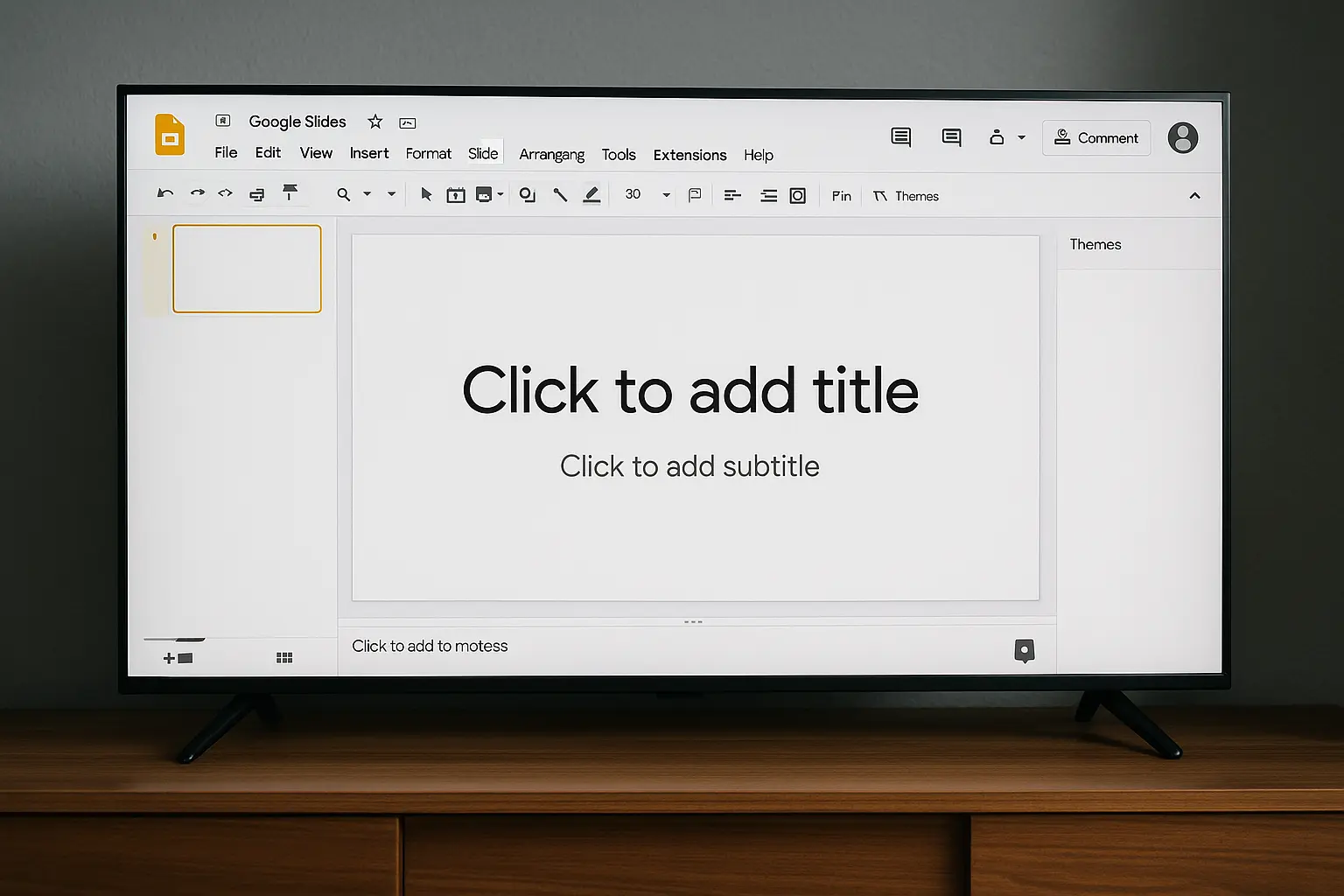
To display a Google Doc, Sheet or Slides deck on a TV, publish it to the web from the File menu, copy the published link, then add that link as a website in a digital signage app such as PosterBooking running on your TV or streaming stick. The document shows fullscreen, refreshes when you edit it, and needs no computer connected to the screen.
What You Need
- A TV or monitor with an HDMI port
- A player: Fire TV Stick, Android TV box, smart TV, Windows PC or Raspberry Pi (see hardware)
- A free PosterBooking account
- A Google Doc, Sheet or Slides file you can share
Step 1: Publish Your Google File to the Web
Open the file in Google Docs, Sheets or Slides. Click File, then Share, then Publish to web. Choose Link, then click Publish and copy the link. This is the same menu regardless of which Google app you are using, which is mercifully consistent for once.
For Slides, pick a slide duration (for example every 10 seconds) and tick Start slideshow as soon as the player loads and Restart the slideshow after the last slide, so the deck keeps looping indefinitely without anyone having to press play again.
Do not skip this step and try to paste a regular sharing link instead; "Publish to web" generates a different type of link designed specifically to be embedded and shown publicly, and a normal share link will just serve up a permission error on the TV, usually right as someone important walks past.
Step 2: Install PosterBooking on Your TV
Download the PosterBooking app from the downloads page. Open it and a pairing code appears on screen.
Step 3: Pair the Screen
Log in to your PosterBooking dashboard, click Add Screen, type the pairing code and give the screen a name.
Step 4: Add the Published Link as a Website
Go to Content, then Websites, click Add Website and paste the link you copied in Step 1.
Step 5: Add It to a Playlist and Assign It to the Screen
Create a playlist, add the website to it, then assign the playlist to your screen. Your Google Doc, Sheet or Slides deck now shows on the TV and updates whenever you edit it.
Ideas for Google Files on Screens
- Google Sheets: live sales leaderboards, stock levels, rotas and booking lists
- Google Docs: notices, policies, daily briefings and menus
- Google Slides: looping promotions, welcome screens and announcements. See the full Google Slides on TV guide
Google Docs vs Slides vs Sheets on a TV
Each Google file type behaves slightly differently once it hits a TV screen, so it helps to pick the right one for the job.
| File Type | Best For | Auto-Advances? | Notes |
|---|---|---|---|
| Google Slides | Looping promotions, announcements | Yes, with timed transitions | Closest to a true signage slideshow |
| Google Docs | Notices, policies, long text | No, shows as a static scrolling page | Best for information people read once |
| Google Sheets | Live data, leaderboards, rotas | No, but refreshes with edits | Great for numbers that change often |
If your content needs to rotate automatically through multiple screens of information, Slides is almost always the right choice. Docs and Sheets are better suited to a single, information-dense screen that people glance at rather than watch, the digital equivalent of a noticeboard rather than a presentation.
Formatting Tips for a TV-Sized Audience
A Google Doc formatted for a printed A4 page looks comically small from across a room, so a few adjustments go a long way:
- Increase the base font size well beyond what looks normal on a laptop screen, often 24pt or larger for body text.
- Use high-contrast colours, dark text on a light background or vice versa, since TVs wash out subtle greys.
- Avoid dense tables in Docs; Sheets handles tabular data far better when shown on a screen.
- Set Slides to landscape 16:9 to match the TV's aspect ratio exactly, avoiding black bars on either side.
- Preview on an actual TV before launch day, because what looks fine on a 13-inch laptop can look surprisingly different on a 55-inch screen six feet away.
Troubleshooting
- "You need permission" on the TV: the file was shared but not published. Use Publish to web instead.
- Text too small: zoom the document or use larger fonts; a TV is read from a distance.
- Changes not appearing: published files can take up to 5 minutes to refresh. See how to clear cache on your player.
- Slideshow not looping: double check that both "Start slideshow as soon as the player loads" and "Restart the slideshow after the last slide" are ticked in the publish settings.
- Formatting looks different on the TV than in the editor: some fonts render differently once published; stick to common web-safe fonts like Arial or Roboto to avoid surprises.
Keeping Content Secure While Published
"Publish to web" does mean the file is technically accessible to anyone with the link, which understandably makes some teams nervous. A few sensible precautions:
- Never publish files containing sensitive personal data, financial details or anything you would not want appearing if the link leaked.
- Use a separate "display" copy of a document rather than publishing your main working file, so internal edits do not accidentally flash up on the TV mid-change.
- Rotate the published link periodically if you are especially cautious, by unpublishing and republishing to generate a fresh URL.
- Remember that the link is unlisted, not private. It will not appear in search results, but anyone who obtains it can view it.
Costs to Expect
Beyond the free Google tools themselves, the main costs involve the screen and the player running PosterBooking. A basic Fire TV Stick or Android box sits at the lower end of streaming device prices, while a Raspberry Pi setup can cost a bit more in parts but offers more flexibility. PosterBooking's software is free for the first 10 screens, so a single reception desk or shop counter typically costs nothing beyond the TV and player you already have, which is as close to a budget-friendly win as digital signage gets.
Frequently Asked Questions
Can I show a Google Doc on a TV without a computer?
Yes, a Google Doc can be shown on a TV without a computer by publishing it to the web and displaying the link through a digital signage app like PosterBooking running on a Fire TV Stick or Android TV box. The TV then shows the document continuously with no computer connected.
Does the TV update when I edit the Google Doc?
Yes, a published Google Doc, Sheet or Slides file updates automatically on the TV when you edit the original, usually within about five minutes. There is no need to republish or re-upload anything after the initial setup.
Can I show a Google Sheet on a TV?
Yes, a Google Sheet can be shown on a TV by publishing it to the web from the File menu and adding the resulting link as a website in PosterBooking, exactly the same process used for a Doc or Slides deck. This works well for live leaderboards, stock counts and rotas.
Is displaying Google Docs on a TV free?
Yes, displaying Google Docs, Sheets or Slides on a TV is free using Google's own publishing tools, and PosterBooking's first 10 screens are also free. Costs only apply if a business scales beyond 10 screens or needs additional hardware.
What media player works best for showing Google Slides on a TV?
A Fire TV Stick, Android TV box, Windows PC or Raspberry Pi all work well for showing Google Slides on a TV when paired with PosterBooking. The best choice usually comes down to what hardware a business already owns rather than any major performance difference.
Why does my published Google Slides deck not loop automatically?
A published Google Slides deck usually fails to loop automatically because the "Start slideshow as soon as the player loads" or "Restart the slideshow after the last slide" options were not ticked during publishing. Revisiting File, Share, Publish to web and re-checking both boxes resolves this.
Can multiple TVs show the same Google Doc at once?
Yes, multiple TVs can show the same published Google Doc, Sheet or Slides link at once by adding that same website link to several screens or playlists within PosterBooking. Each screen pulls from the same published URL, so they all update together.
Is it safe to publish a Google Doc to the web for signage?
Publishing a Google Doc to the web is reasonably safe for signage as long as it contains no sensitive or personal information, since anyone with the published link can view the file. Using a dedicated display copy of the document, rather than an internal working file, keeps this risk low.